42 — 摇摆球体 Shader
简介
在本课中,我们将创建一个摇摆的球体:
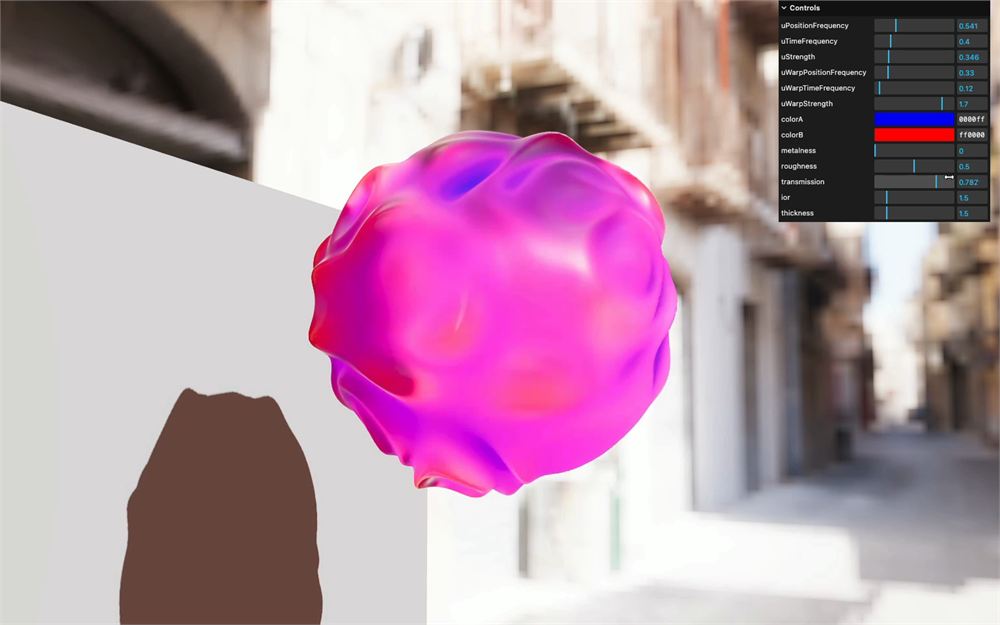
为了创建如此有机自然的动画,我们需要在 vertex shader 中对顶点进行动画处理,但如你所见,MeshPhysicalMaterial 的所有属性仍然受到支持。
我们可以调整 metalness、roughness、transmission 和 IOR。甚至连 shadow 都受到支持,而且看起来仍然就像经典的 MeshPhysicalMaterial。
为了实现这一点,我们需要像在 Modified Material 一课中所做的那样,从内置的 MeshPhysicalMaterial 出发并改进它。但这一次,我们将采用不同的方法,依赖 Custom Shader Material 库。
这个库会将 shader 代码直接注入到 Three.js 内置 material 中,而我们无需深入研究 Three.js 的 shader 就能理解在哪里以及如何注入代码,因此对初学者非常友好。
设置
起始项目已经包含以下内容:
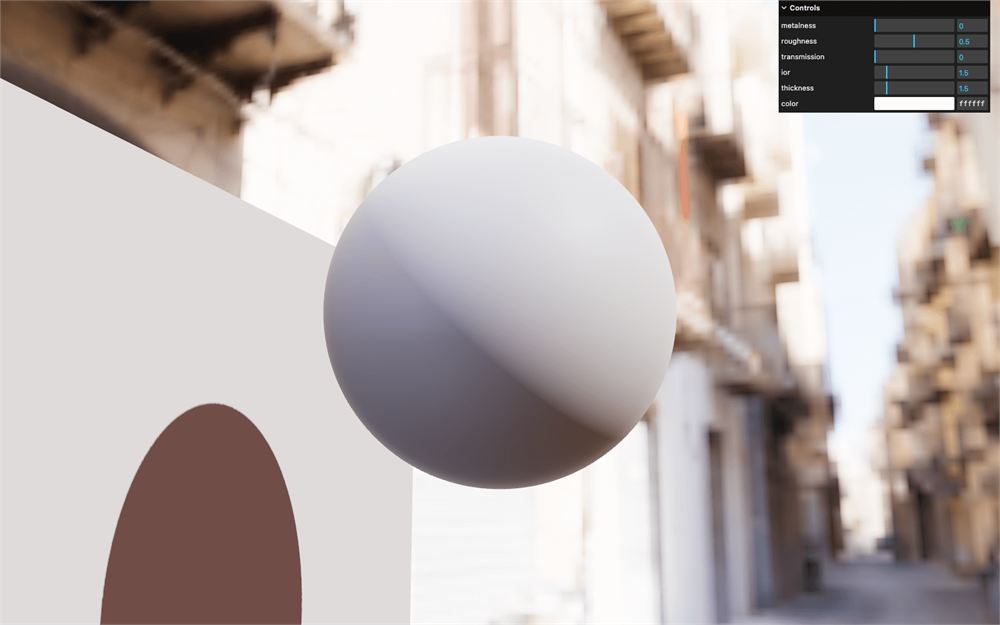
- 一个 IcosahedronGeometry 球体、应用于它的 MeshPhysicalMaterial 以及一系列相关的调节项
- 一个用于测试 shadow 的平面
- 使用一个 HDR 环境贴图作为背景,同时也用它照亮 scene
- 一个 DirectionalLight,用来进一步照亮球体并在平面上投射 shadow
vite-plugin-glsl依赖,用于处理 GLSL 文件- 一个
shaders/文件夹,其中包含一个可供引入的simplexNoise4d.glsl文件 - 一个
GLTFLoader实例,并关联了一个DracoLoader实例,以便我们可以在模型上测试摇摆动画 - 位于
static/文件夹中的 Suzanne 模型suzanne.glb OrbitControls,用于旋转观察
Custom Shader Material
为了实现这个效果,我们将增强 MeshPhysicalMaterial 并让表面产生摇摆。
目前,我们只想实现 Custom Shader Material,稍后我们将创建摇摆动画。
依赖
Custom Shader Material 可在 NPM 上获取:https://www.npmjs.com/package/three-custom-shader-material
使用 npm install 安装该库,并将版本强制指定为 5.4:
npm install three-custom-shader-material@5.4我们强制指定版本是为了确保它能与本节课一起正常工作。
在 script.js 中,从 'three-custom-shader-material/vanilla' 导入 CustomShaderMaterial:
import CustomShaderMaterial from 'three-custom-shader-material/vanilla'vanilla 表示这是该库的经典实现,不依赖任何第三方库,例如 React Three Fiber(你将在课程的后续部分了解它)。
使用 CustomShaderMaterial,我们可以基于内置 material 创建新的 material。
将 THREE.MeshPhysicalMaterial 替换为 CustomShaderMaterial,并为 THREE.MeshPhysicalMaterial 添加 baseMaterial 属性。接下来,我们将用注释把 Custom Shader Material 和基础 material 的属性区分开:
// Material
const material = new CustomShaderMaterial({
    // CSM
    baseMaterial: THREE.MeshPhysicalMaterial,

    // MeshPhysicalMaterial
    metalness: 0,
    roughness: 0.5,
    color: '#ffffff',
    transmission: 0,
    ior: 1.5,
    thickness: 1.5,
    transparent: true,
    wireframe: false
})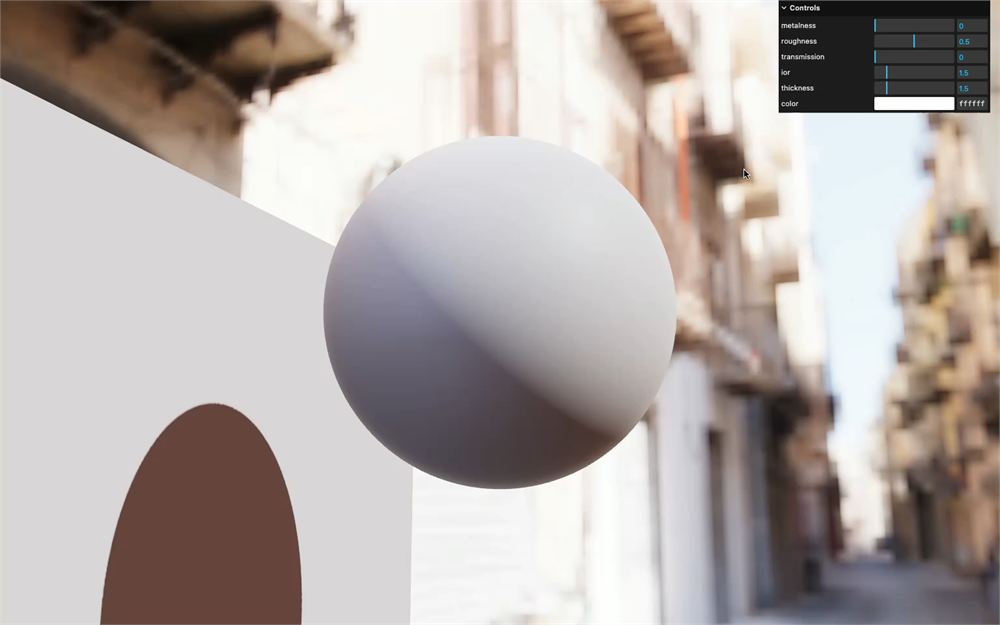
如你所见,这个 material 仍然正常工作。尽管它现在是 CustomShaderMaterial 的实例,但它使用 THREE.MeshPhysicalMaterial 作为基础 material,之前支持的所有属性仍然有效。
注入自定义 shader
现在我们想注入自己的 shader 代码,这正是 Custom Shader Material 派上用场的地方。借助这个库,我们添加自定义 shader 就像编写普通的 vertex shader 和 fragment shader 一样。
在 src/shaders/ 中,创建一个 wobble/ 文件夹。
在其中创建一个包含空 main() 的 vertex.glsl 文件:
void main()
{

}
仍在 src/shaders/wobble/ 中,创建一个具有相同空 main() 的 fragment.glsl:
void main()
{

}
在 script.js 中,将它们分别导入为 wobbleVertexShader 和 wobbleFragmentShader:
import wobbleVertexShader from './shaders/wobble/vertex.glsl'
import wobbleFragmentShader from './shaders/wobble/fragment.glsl'
使用 vertexShader 和 fragmentShader 属性将它们添加到 CustomShaderMaterial,类似我们对 ShaderMaterial 所做的那样:
// Material
const material = new CustomShaderMaterial({
    // CSM
    baseMaterial: THREE.MeshPhysicalMaterial,
    vertexShader: wobbleVertexShader,
    fragmentShader: wobbleFragmentShader,

    // MeshPhysicalMaterial
    // ...
})
什么都没有发生,而这是好消息。
我们已经注入了自己的 vertex shader 和 fragment shader,但目前它们什么都不做。
警告
你可能已经注意到控制台中出现了一条警告:
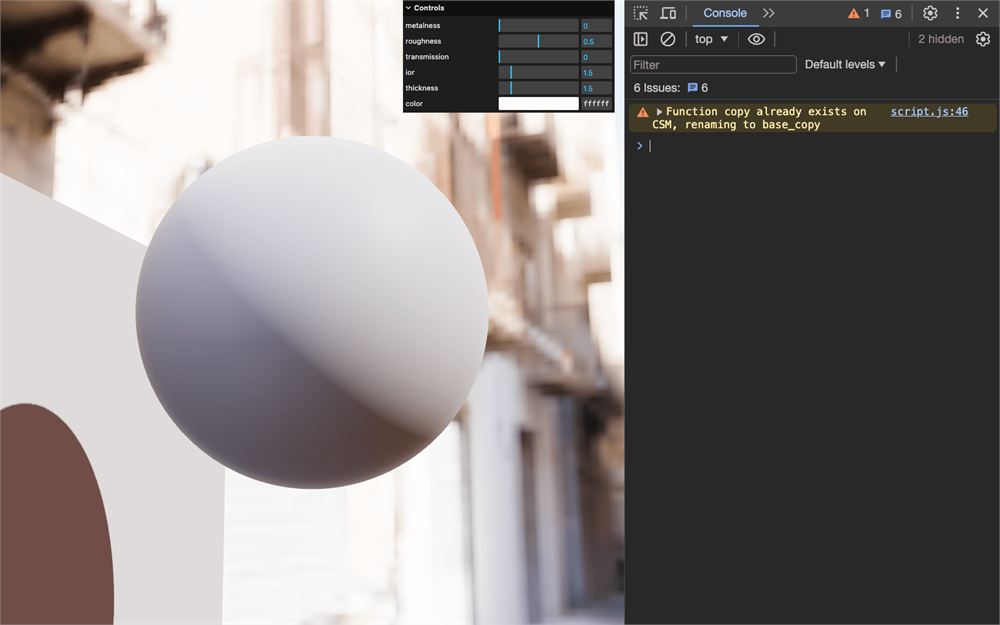
这是 Custom Shader Material 在提醒我们存在一些已被处理且无害的意外代码片段。
你可以通过将 silent 属性设为 true 来消除这些警告:
// Material
const material = new CustomShaderMaterial({
    // CSM
    baseMaterial: THREE.MeshPhysicalMaterial,
    vertexShader: wobbleVertexShader,
    fragmentShader: wobbleFragmentShader,
    silent: true,

    // MeshPhysicalMaterial
    // ...
})
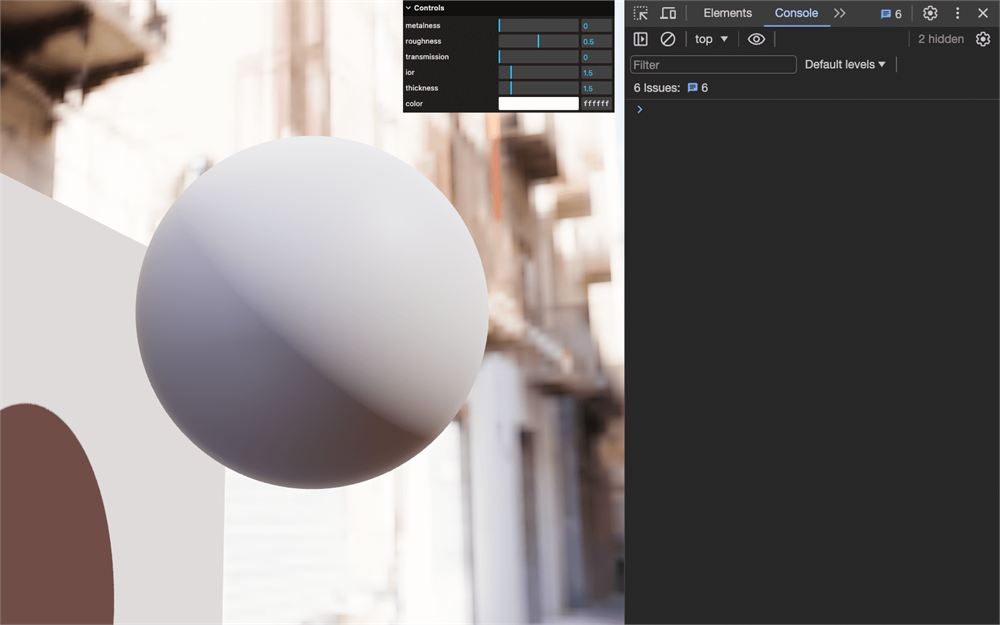
变量
现在我们要了解如何更新内置 material。
为此,我们可以使用 Custom Shader Material 变量,你可以在文档中找到它们:https://github.com/FarazzShaikh/THREE-CustomShaderMaterial?tab=readme-ov-file#output-variables
Custom Shader Material 创建了一系列变量,例如 csm_Position、csm_Normal、csm_PointSize、csm_DiffuseColor、csm_Roughness,修改这些变量将改变 shader 的最终输出。
让我们做几个测试。
在 vertex.glsl 的 main() 函数中,增大 csm_Position.y:
void main()
{
    csm_Position.y += 2.0;
}
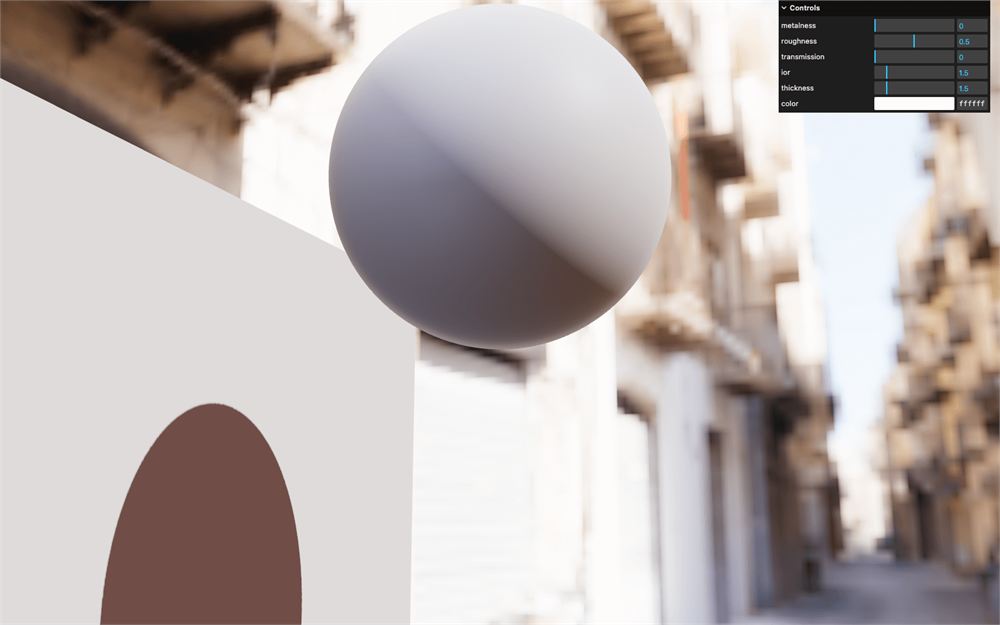
球体高了 2 个单位。
我们甚至可以利用当前位置创建有趣的形状:
void main()
{
    csm_Position.y += sin(csm_Position.z * 3.0) * 0.5;
}
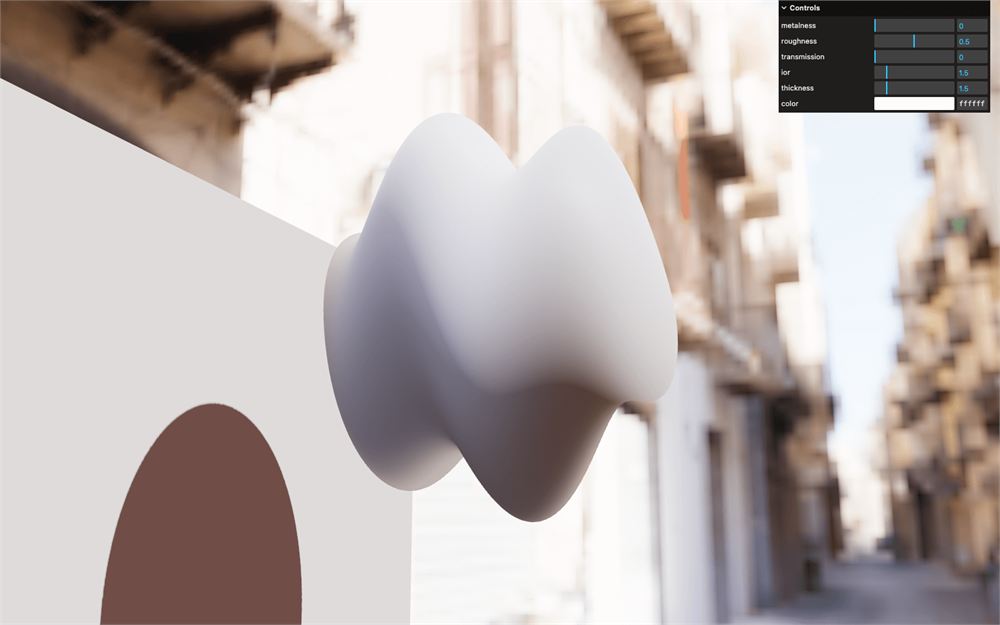
那 fragment.glsl 呢?
我们可以使用 csm_FragColor 更改最终颜色。将 csm_FragColor 的 rgb 改为亮红色:
void main()
{
    csm_FragColor.rgb = vec3(1.0, 0.5, 0.5);
}
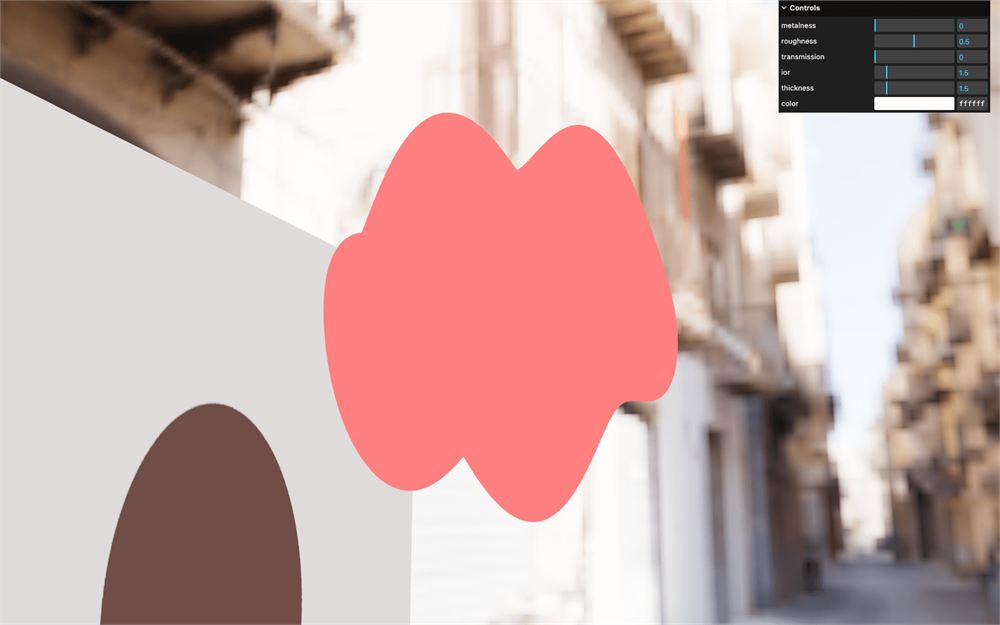
不错,但我们失去了明暗着色。
好消息是:我们可以使用 csm_DiffuseColor 调整 material 的颜色(在应用 light 和 shadow 之前)。
将 csm_DiffuseColor 的 rgb 改为纯红色:
void main()
{
    csm_DiffuseColor.rgb = vec3(1.0, 0.0, 0.0);
}
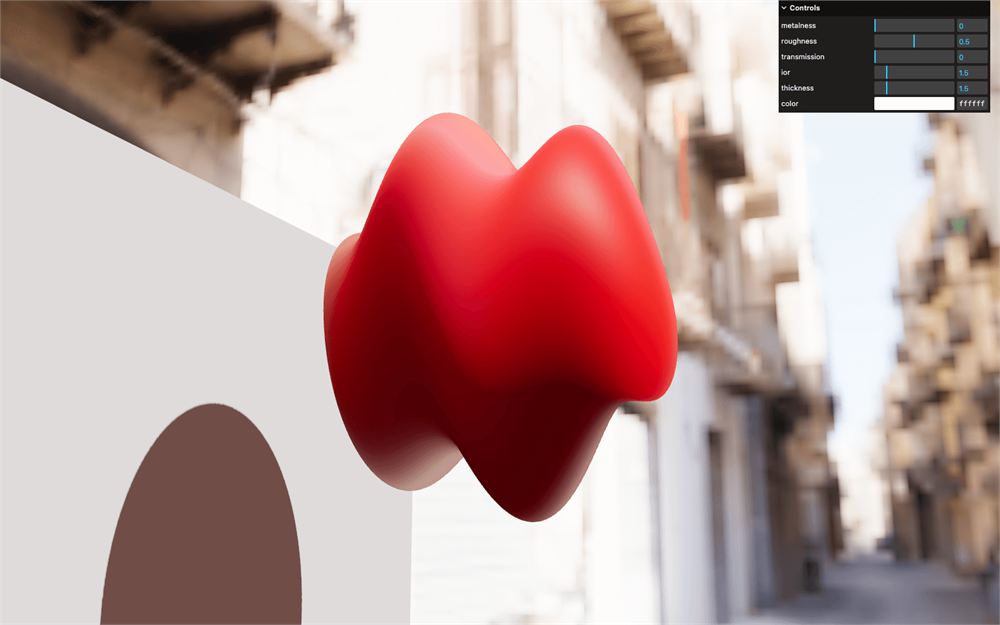
这就像更改 color 属性一样。虽然没什么实际用处,但至少我们现在知道它是如何工作的了。
让我们玩得更有趣一点。我们将通过以垂直条纹图案更新 csm_Metalness 和 csm_Roughness 来调整 metalness 和 roughness。跟着代码走,你就会明白。
首先,我们需要在 fragment shader 中获取 UV 坐标。
就像我们以往所做的那样,在 vertex.glsl 中创建一个 vec2 vUv varying 并将 uv 赋给它:
varying vec2 vUv;

void main()
{
    // ...

    // Varying
    vUv = uv;
}
在 fragment.glsl 中取回它:
varying vec2 vUv;

void main()
{
    // ...
}
使用 sin 和 step 更新 csm_Metalness,作用于乘以 100.0 后的 vUv.x :
void main()
{
    csm_Metalness = step(0.0, sin(vUv.x * 100.0));
}
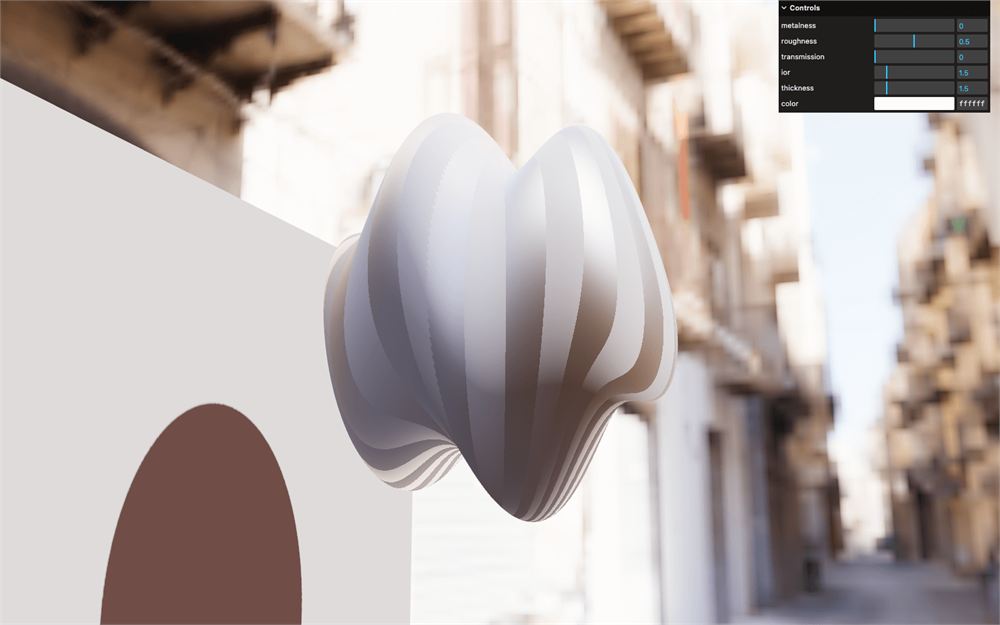
通过用 1.0 减去 csm_Metalness 来将 csm_Roughness 设为相反值:
void main()
{
    csm_Metalness = step(0.0, sin(vUv.x * 100.0));
    csm_Roughness = 1.0 - csm_Metalness;
}
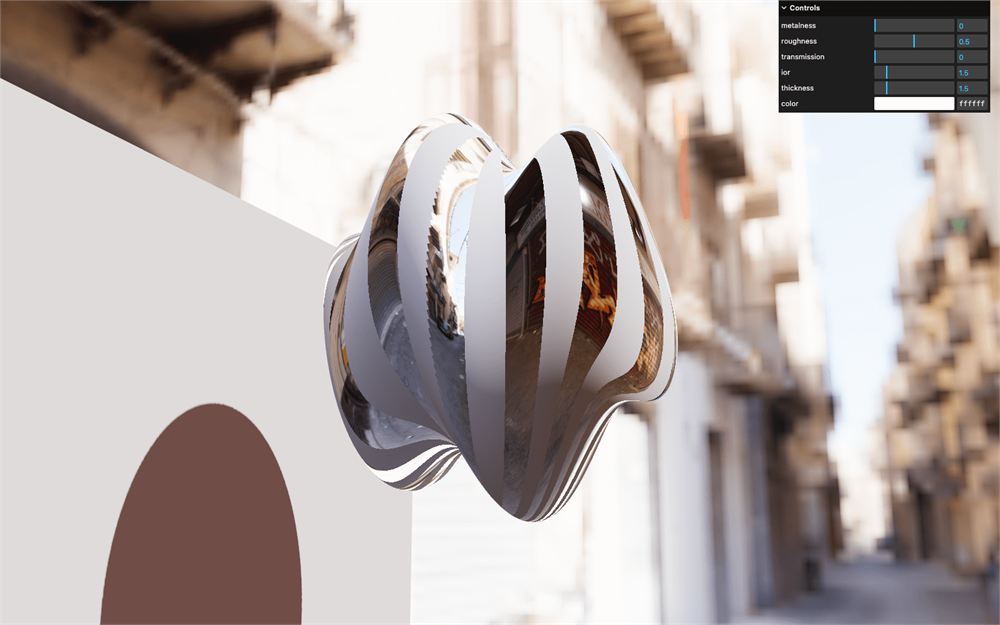
如果你不喜欢图案中奇怪的阶梯效果,可以在 sin 中加上 0.5:
void main()
{
    csm_Metalness = step(0.0, sin(vUv.x * 100.0 + 0.5));
    csm_Roughness = 1.0 - csm_Metalness;
}
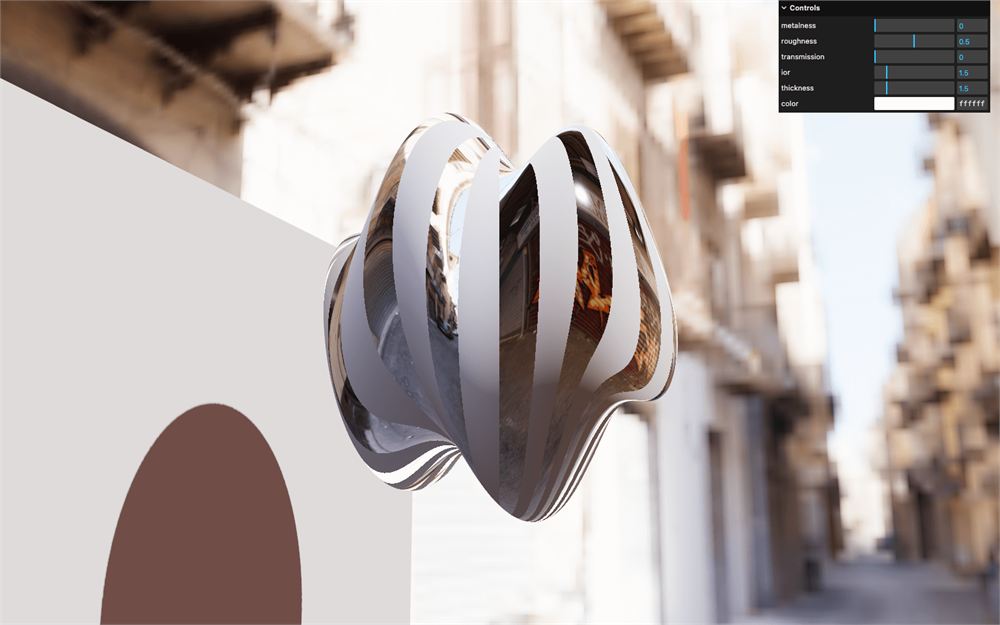
这就是 Custom Shader Material 的强大之处。
但这并不是我们想要实现的效果。
移除 vUv 并清空两个 main() 函数:
void main()
{
}
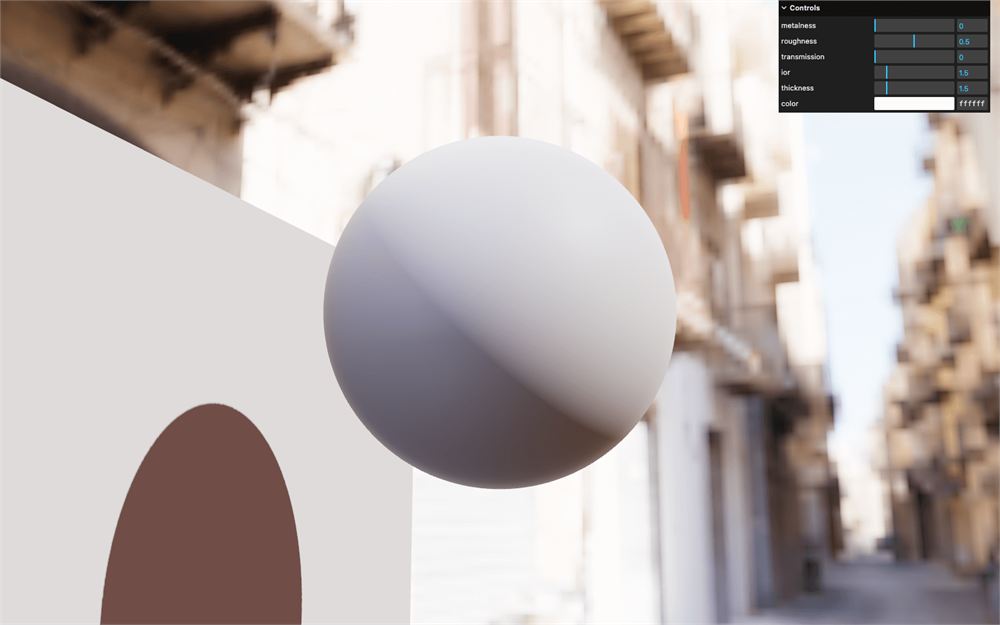
基础摇摆
让我们从摇摆效果开始。
原理
这个过程与我们在 Raging Sea Shading 几课中所做的类似。我们根据顶点位置计算出一个高度,然后移动该顶点。
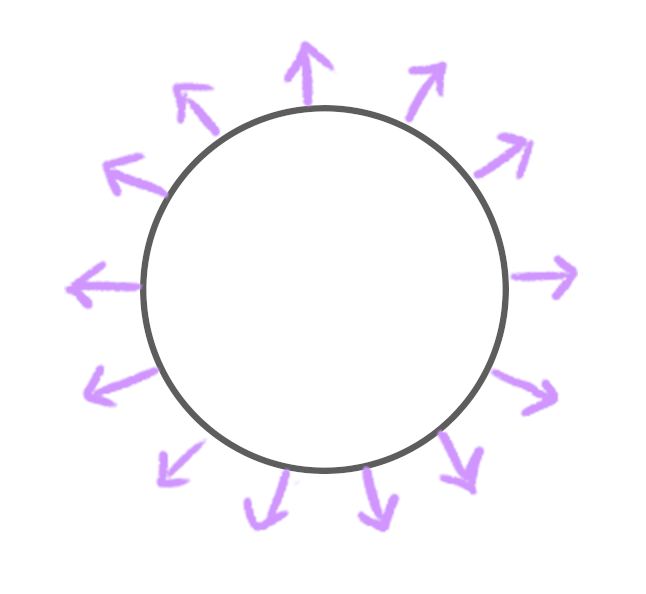
对于 Raging Sea,我们可以利用 y 轴让顶点上下移动。但在本例中,事情没那么简单。我们想让顶点根据面的朝向前后移动。
好消息是,我们已经知道有一个变量可以指示面的方向,那就是 normal:
实现
我们将使用现在已经熟悉的 Simplex Noise,它已经以 simplexNoise4d 的形式存在于 src/shaders/includes/ 文件夹中。
它是一个 4D Simplex Noise,因此我们可以将 3D 位置作为基础输入,并使用第四个维度让它随时间变化。
在 vertex.glsl 中引入它:
#include ../includes/simplexNoise4d.glsl

void main()
{
}
调用 simplexNoise4d(),传入一个 vec4() 并将其保存为 float wobble(不要保存):
void main()
{
    // Wobble
    float wobble = simplexNoise4d(vec4());
}
对于这个 vec4,我们将位置作为前三个值传入,我们可以使用 csm_Position 获取该位置。第四个值我们设为 0.0,稍后会用时间替换它:
void main()
{
    // Wobble
    float wobble = simplexNoise4d(vec4(
        csm_Position, // XYZ
        0.0           // W
    ));
}
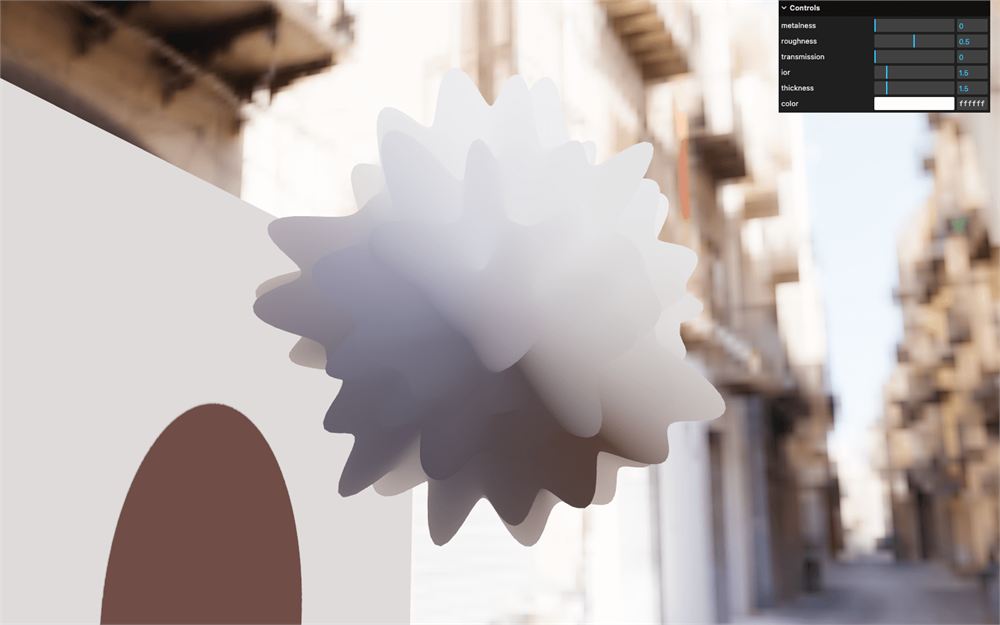
最后,我们想让顶点根据 normal 移动,这很简单,只需将 wobble 乘以 normal 并加到 csm_Position 上:
void main()
{
    // Wobble
    float wobble = simplexNoise4d(vec4(
        csm_Position, // XYZ
        0.0           // W
    ));
    csm_Position += wobble * normal;
}
计算 normal
看起来好像起作用了,但明暗着色看起来很怪。就好像面的朝向不正确,这正是我们在为 Raging Sea 添加明暗着色时遇到的问题。
我们不能再依赖基础 normal 了,因此需要计算它们并使用相邻顶点技术。
在 Raging Sea 的情况下,我们能够相当容易地计算出相邻顶点在哪里,因为它是一个平面网格:
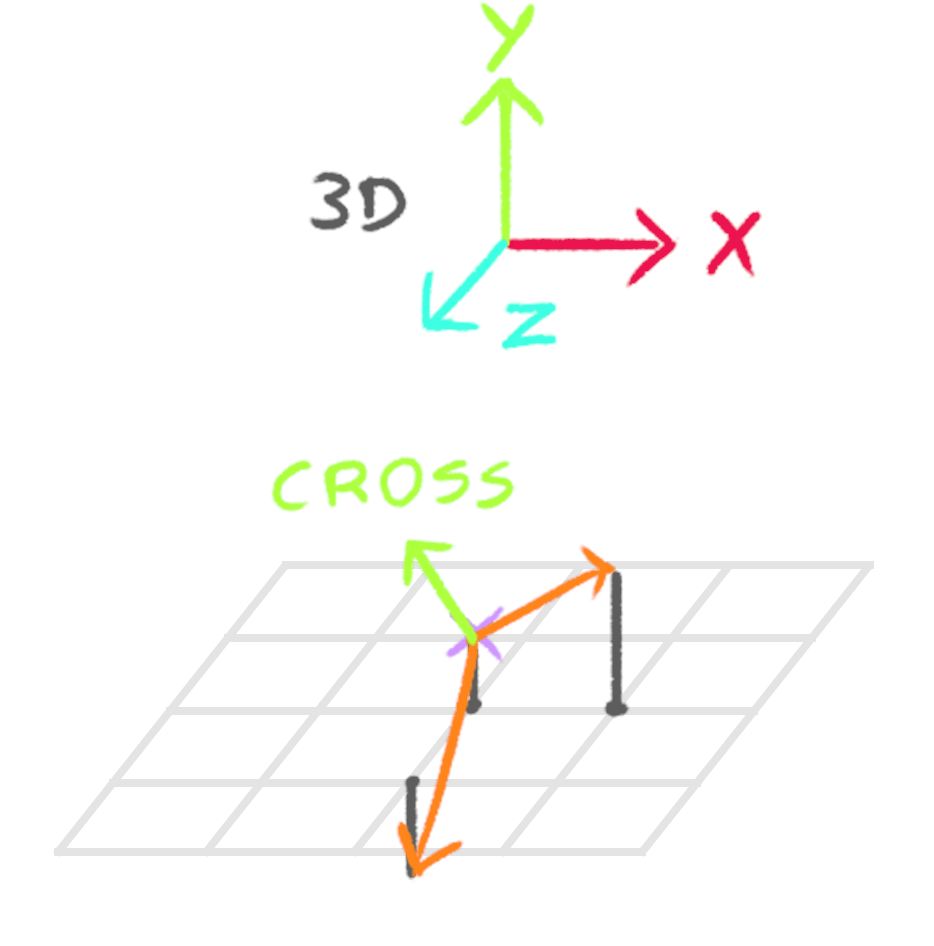
但这里的情况稍微复杂一些。由于它是一个球体,我们可以尝试用复杂的三角函数来找到相邻顶点,但我们希望摇摆效果即使在导入的模型上也能生效。
幸运的是,对于 3D geometry 而言,指向我们要找的相邻顶点的两个向量是众所周知的。那就是 “tangent” 和 “bitangent”:
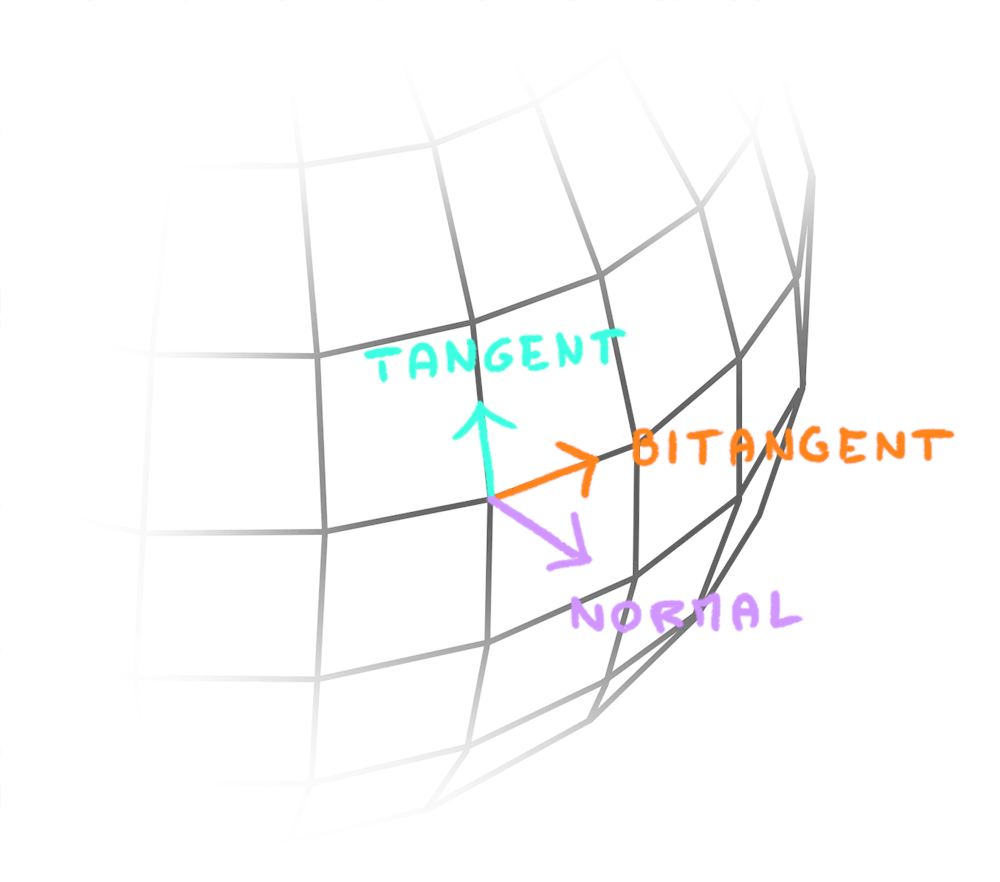
目前我们只专注于 tangent,稍后再研究 bitangent。
Tangent
Three.js 可以通过专门为 tangent 创建一个 attribute 来帮助我们,这样我们就能在 vertex shader 中访问它。听起来好得令人难以置信?让我们试一试。
在 script.js 中,实例化 IcosahedronGeometry 之后,用 console.log() 打印 geometry.attributes,看看我们是否已经有了这个 tangent attribute:
const geometry = new THREE.IcosahedronGeometry(2.5, 50)
console.log(geometry.attributes)
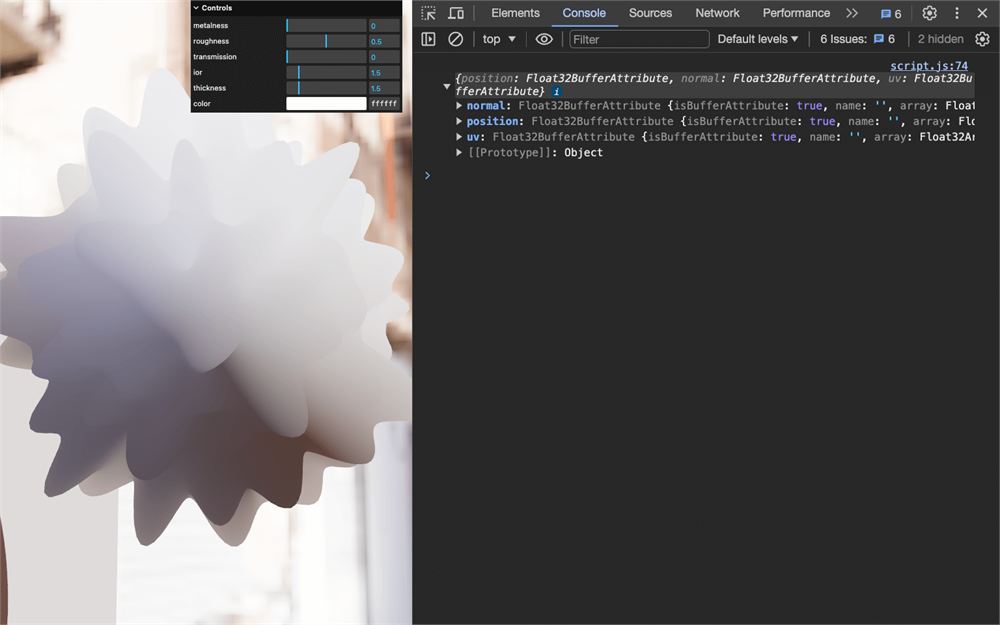
我们得到了 normal、position 和 uv,但没有 tangent。
如果你查看 BufferGeometry 文档(IcosahedronGeometry 继承自它),会发现有一个 computeTangents() 方法。
让我们试一试:
const geometry = new THREE.IcosahedronGeometry(2.5, 50)
geometry.computeTangents()
console.log(geometry.attributes)
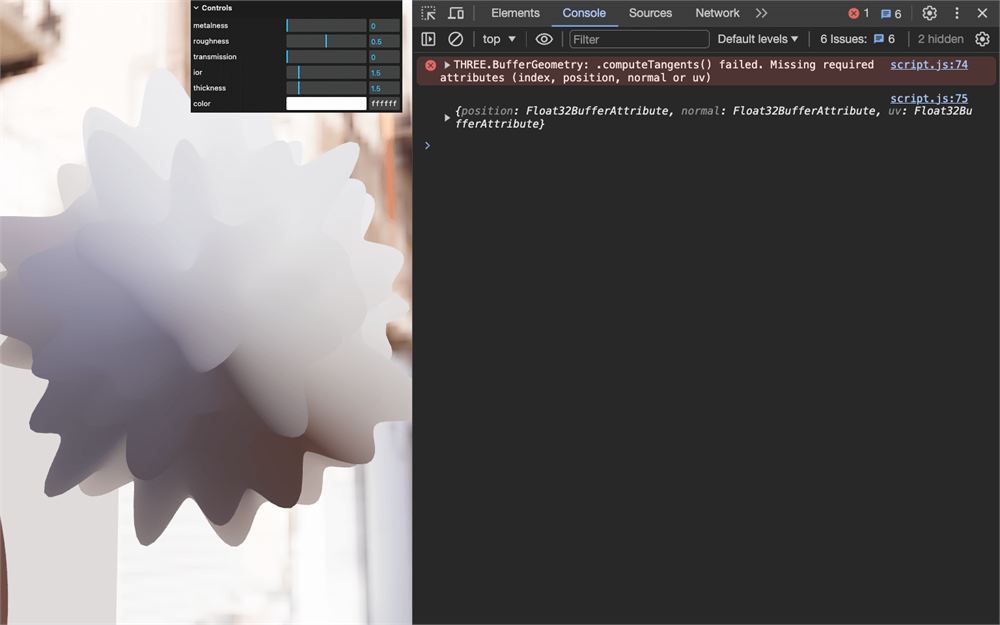
我们遇到了一个错误。
要计算 tangent,Three.js 需要 geometry 上具有以下 attribute:index、position、normal 和 uv。
我们缺少 index,它指的正是我们在前几课中提到的那种索引。它使得同一个顶点可以被多个三角形重复使用:
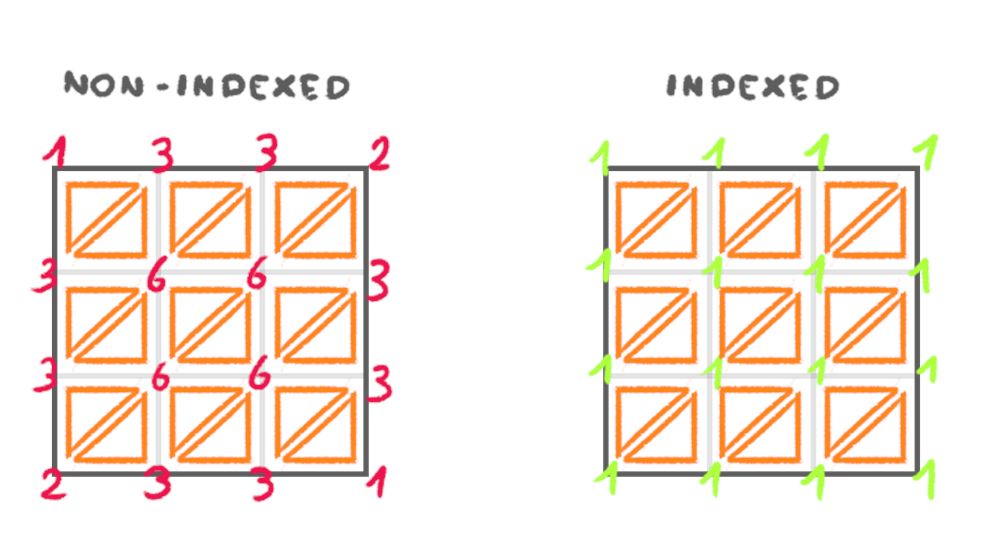
这意味着我们需要将非索引 geometry 转换为索引 geometry,得益于一个名为 BufferGeometryUtils 的特殊 Three.js 类,我们可以做到这一点。
这个类提供了一系列函数,我们无需实例化它就能使用这些函数。相反,我们可以只导入我们需要的函数。而将我们的 geometry 转换为索引 geometry 的函数就是 mergeVertices。
从 'three/addons/utils/BufferGeometryUtils.js' 导入 mergeVertices:
import { mergeVertices } from 'three/addons/utils/BufferGeometryUtils.js'现在将 geometry 的 const 替换为 let,因为我们想替换这个变量;对 geometry 调用 mergeVertices() 并替换它:
let geometry = new THREE.IcosahedronGeometry(2.5, 50)
geometry = mergeVertices(geometry)
geometry.computeTangents()
console.log(geometry.attributes)
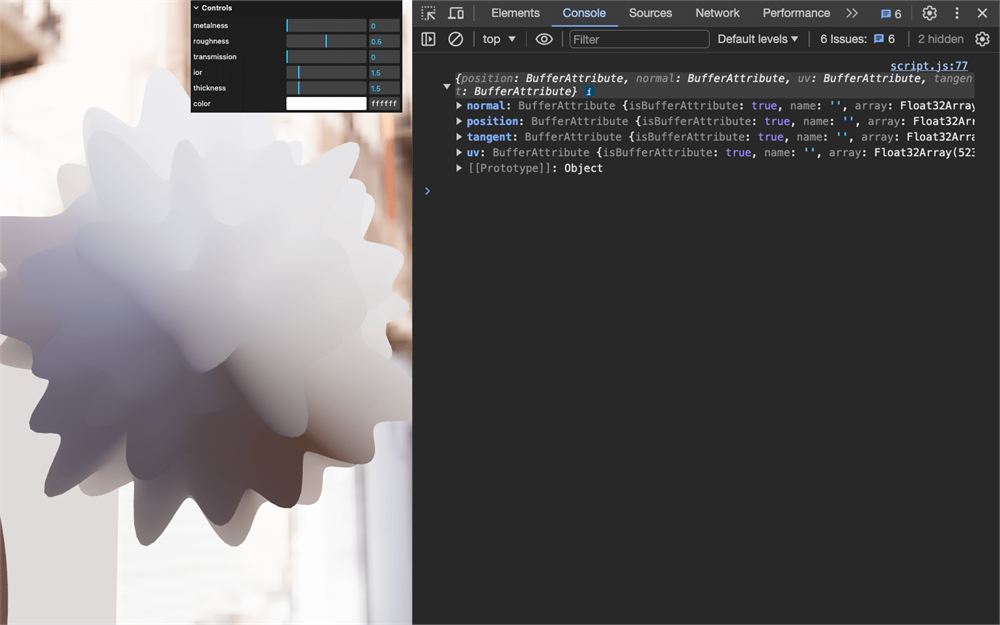
现在我们有了一个全新的 tangent attribute。
要注意,合并顶点以生成索引 geometry 可能非常耗费性能。更糟的是,所需时间会随着顶点数量的增加呈指数级增长。幸运的是,我们只在体验开始时执行一次,所以请留意体验开始时的那次长时间卡顿。
另外请注意,导入的模型可能已经具有索引 geometry,我们稍后将使用的模型就是这种情况。
移除 console.log():
let geometry = new THREE.IcosahedronGeometry(2.5, 50)
geometry = mergeVertices(geometry)
geometry.computeTangents()
Bitangent
我们有 normal,有 tangent,现在还需要 bitangent。
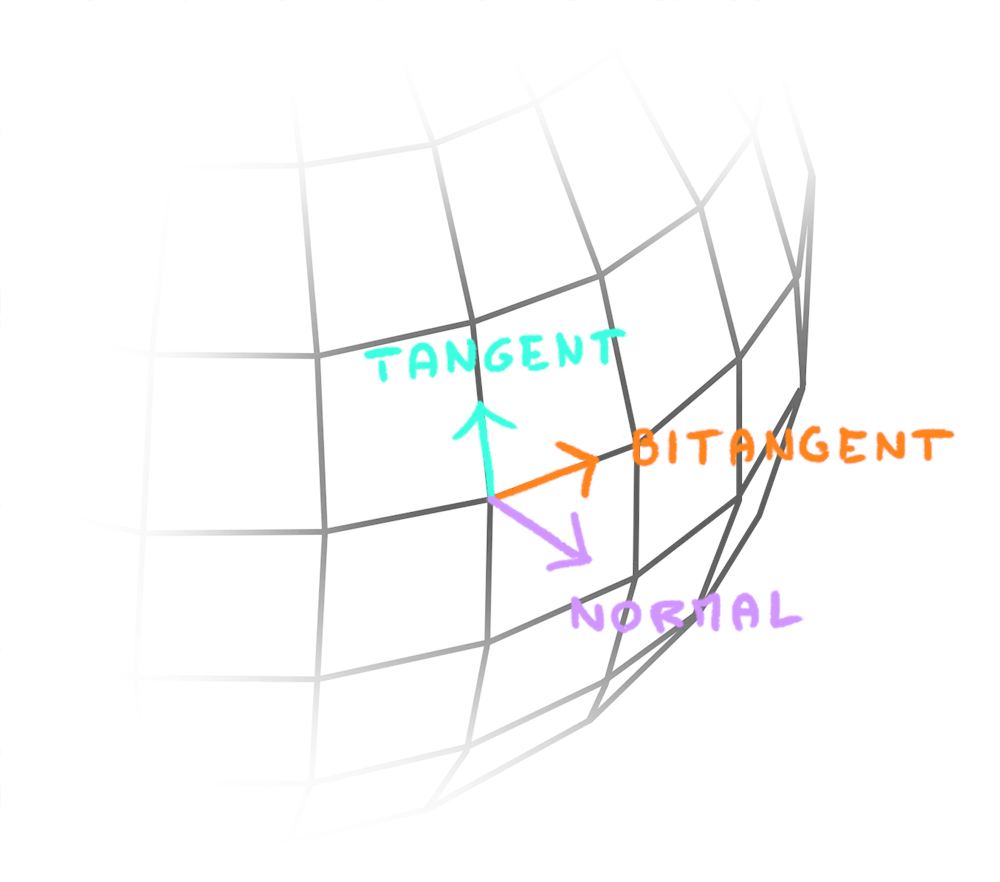
你能猜到如何找到它吗?给你一个提示,bitangent 同时垂直于 normal 和 tangent。
我们将使用叉积(cross product)!
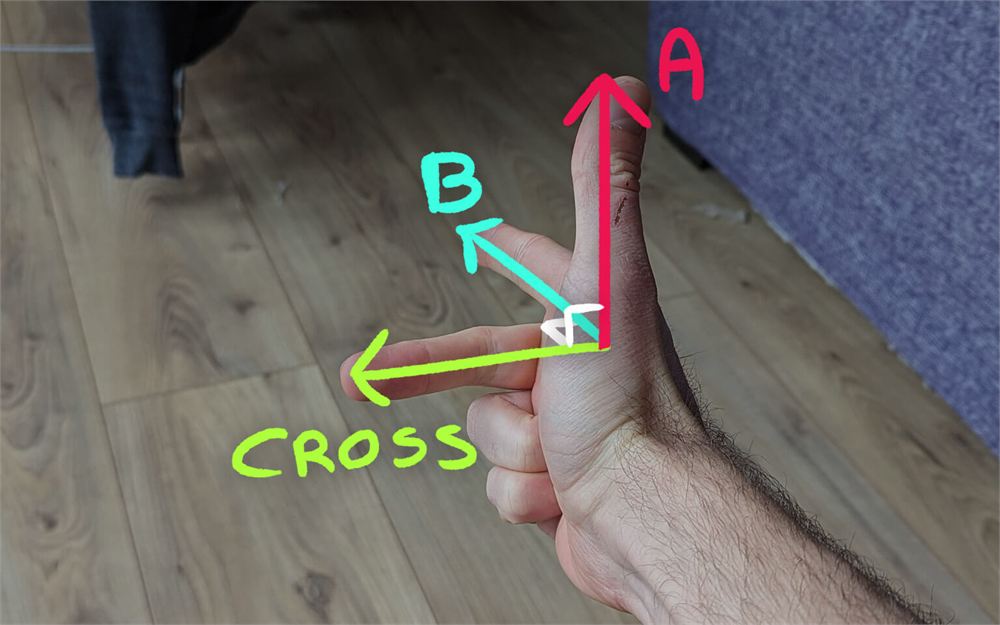
在 vertex.glsl 中,取回 tangent attribute。要注意,它是一个 vec4:
attribute vec4 tangent;normal attribute 已经注入到 shader 中了。
在 main() 函数的开头,使用 cross 计算 normal 与 tangent.xyz 的叉积,并将其保存为 vec3 biTangent 变量:
void main()
{
    vec3 biTangent = cross(normal, tangent.xyz);

    // ...
}
就这样。现在我们有了 tangent 和 biTangent,可以用它们来计算两个相邻顶点所在的位置。
计算 normal
要计算 normal,首先需要确定两个相邻顶点,我们将它们命名为 A 和 B:
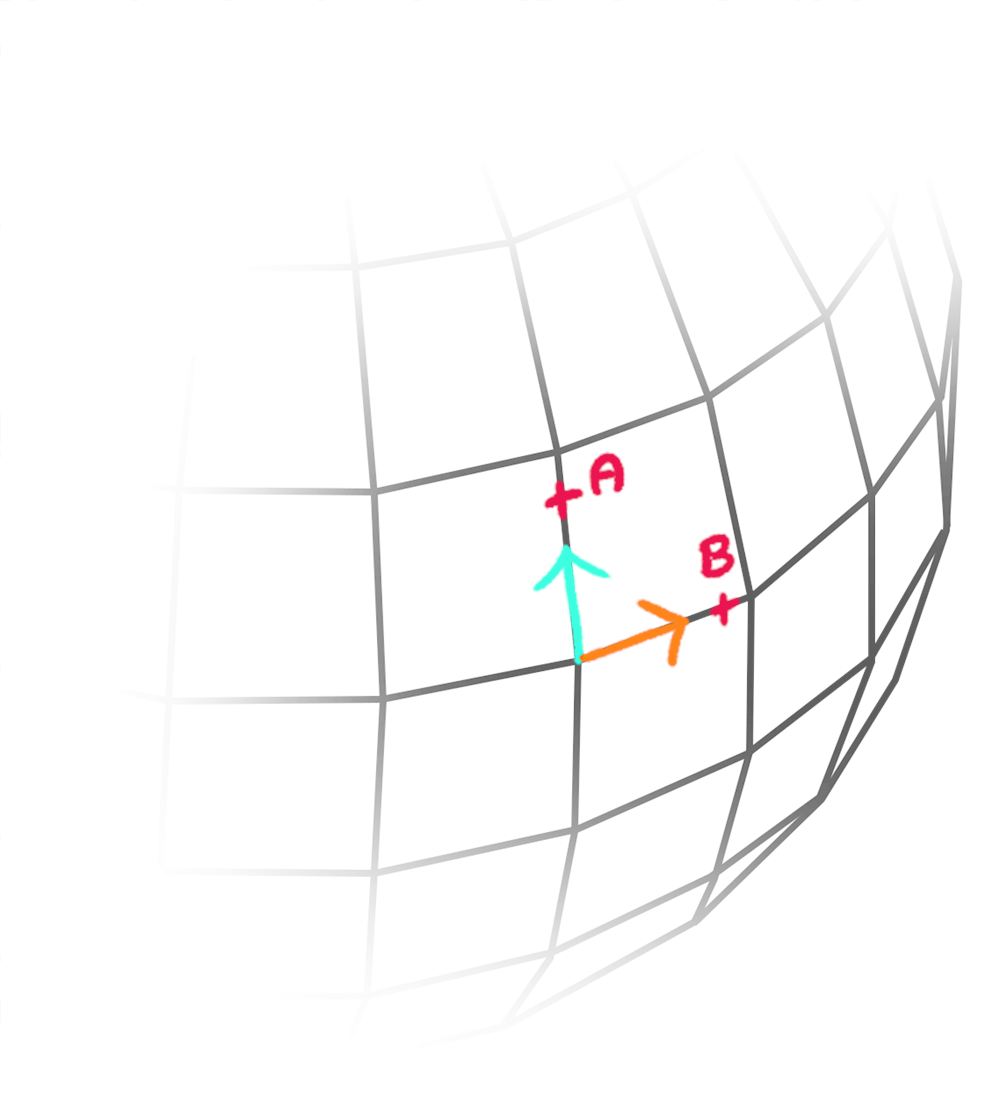
A 在 tangent 一侧,B 在 biTangent 一侧。
首先,让我们将到这些相邻顶点的距离定义为一个 float shift 变量:
void main()
{
    vec3 biTangent = cross(normal, tangent.xyz);

    // Neighbours positions
    float shift = 0.01;

    // ...
}
现在我们可以基于 csm_Position 创建 positionA 和 positionB,并分别加上乘以 shift 的 tangent 和 biTangent:
void main()
{
    // ...

    // Neighbours positions
    float shift = 0.01;
    vec3 positionA = csm_Position + tangent.xyz * shift;
    vec3 positionB = csm_Position + biTangent * shift;

    // ...
}
由于我们将要应用 simplexNoise4d 三次,不妨把它放到一个单独的函数中。
在 main() 之前,创建一个返回 float 的 getWobble 函数(不要保存):
float getWobble()
{

}

void main()
{
    // ...
}
返回同样的 simplexNoise4d(不要保存):
float getWobble()
{
    return simplexNoise4d(vec4(
        csm_Position, // XYZ
        0.0           // W
    ));
}
添加一个 vec3 position 参数并用它替换 csm_Position(可以保存):
float getWobble(vec3 position)
{
    return simplexNoise4d(vec4(
        position, // XYZ
        0.0       // W
    ));
}
将 main() 中的 simplexNoise4d 替换为对 getWobble() 的调用:
void main()
{
    // ...

    // Wobble
    float wobble = getWobble(csm_Position);
    csm_Position += wobble * normal;
}
现在我们可以使用同一个 getWobble() 来更新 positionA 和 positionB:
void main()
{
    // ...

    // Wobble
    float wobble = getWobble(csm_Position);
    csm_Position += wobble * normal;
    positionA    += getWobble(positionA) * normal;
    positionB    += getWobble(positionB) * normal;
}
我们将当前顶点位置表示为 csm_Position,将两个相邻顶点表示为 positionA 和 positionB。现在我们需要从当前顶点指向相邻顶点的方向,我们将它们称为 toA 和 toB。
要计算从一个 vec3 到另一个的方向,我们用起点减去终点。
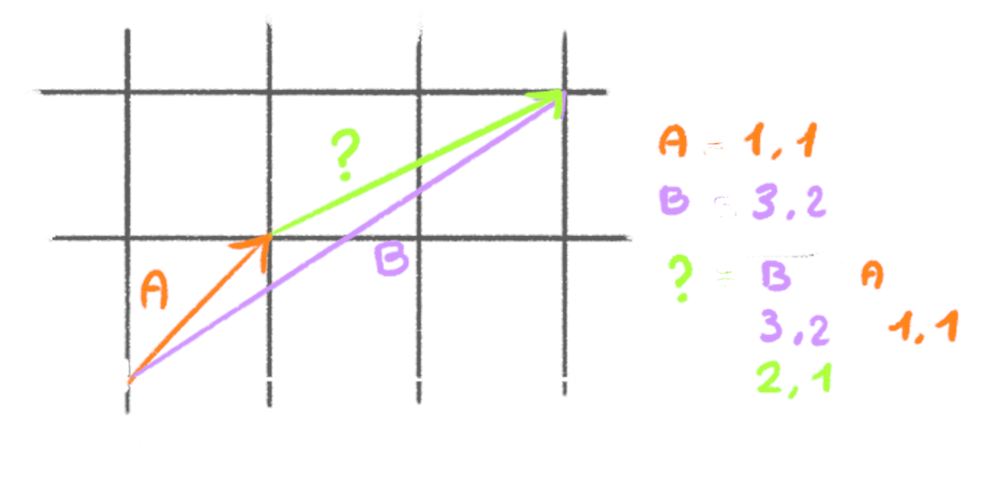
由于我们只需要方向,我们使用 normalize 对它进行归一化:
void main()
{
    // ...

    // Compute normal
    vec3 toA = normalize(positionA - csm_Position);
    vec3 toB = normalize(positionB - csm_Position);
}
最后,我们可以计算两者的叉积:
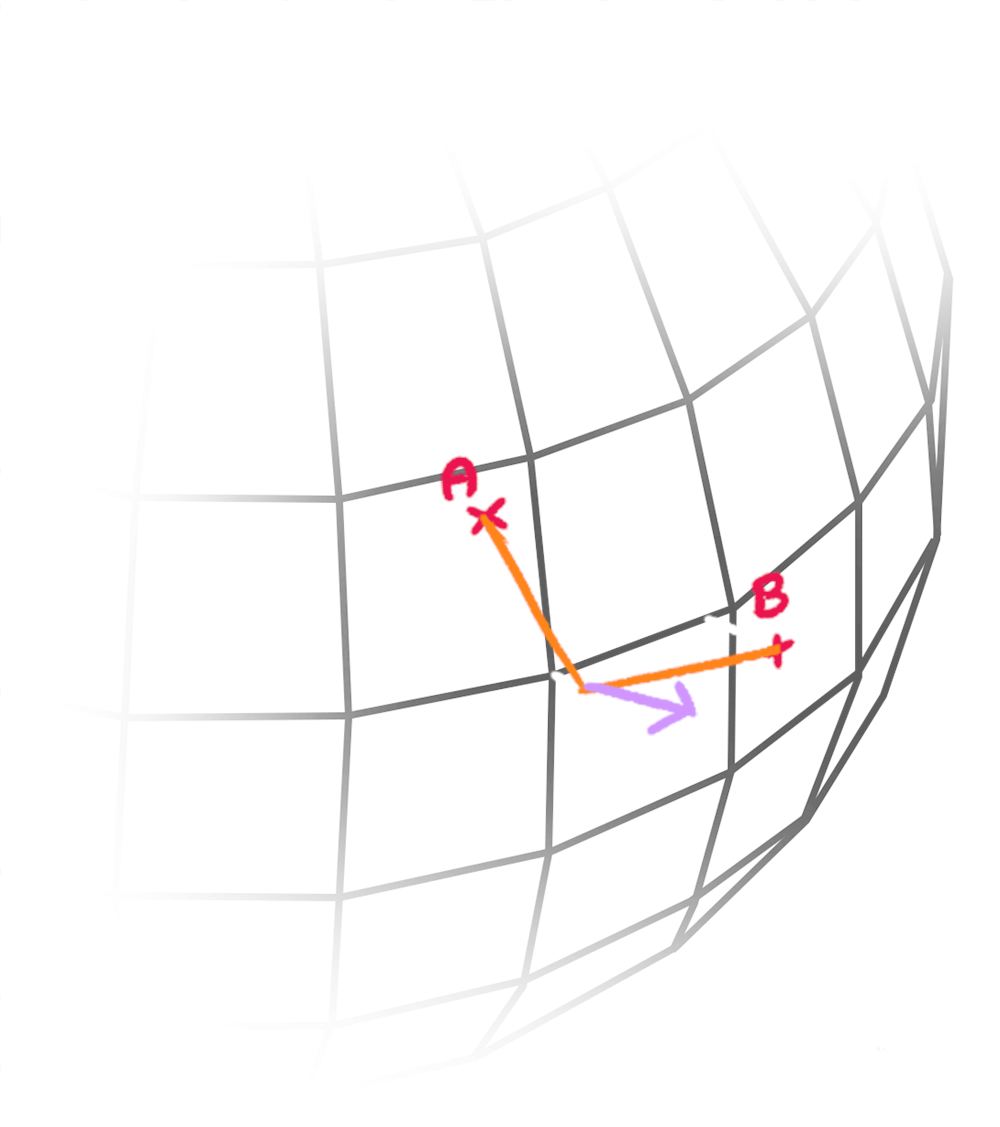
对 toA 与 toB 调用 cross,并将其保存为 csm_Normal 以覆盖默认 normal:
void main()
{
    // ...

    // Compute normal
    vec3 toA = normalize(positionA - csm_Position);
    vec3 toB = normalize(positionB - csm_Position);
    csm_Normal = cross(toA, toB);
}
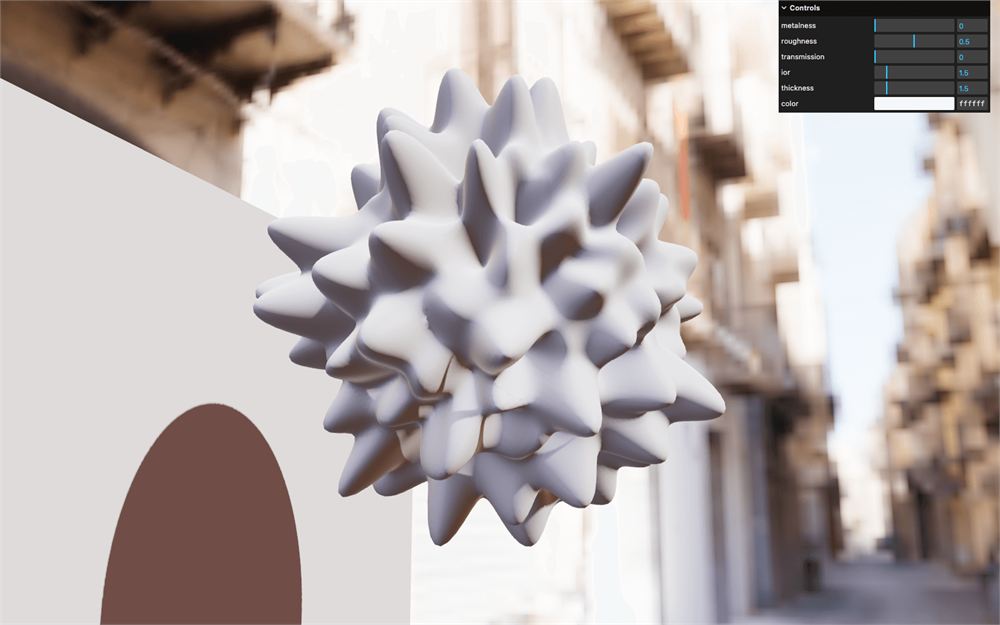
我们得到了正确的 normal。
修复 shadow
在对摇摆效果进行动画和改进之前,我们需要修复 shadow。
你可以看到平面上有问题,mesh 本身上也有问题:
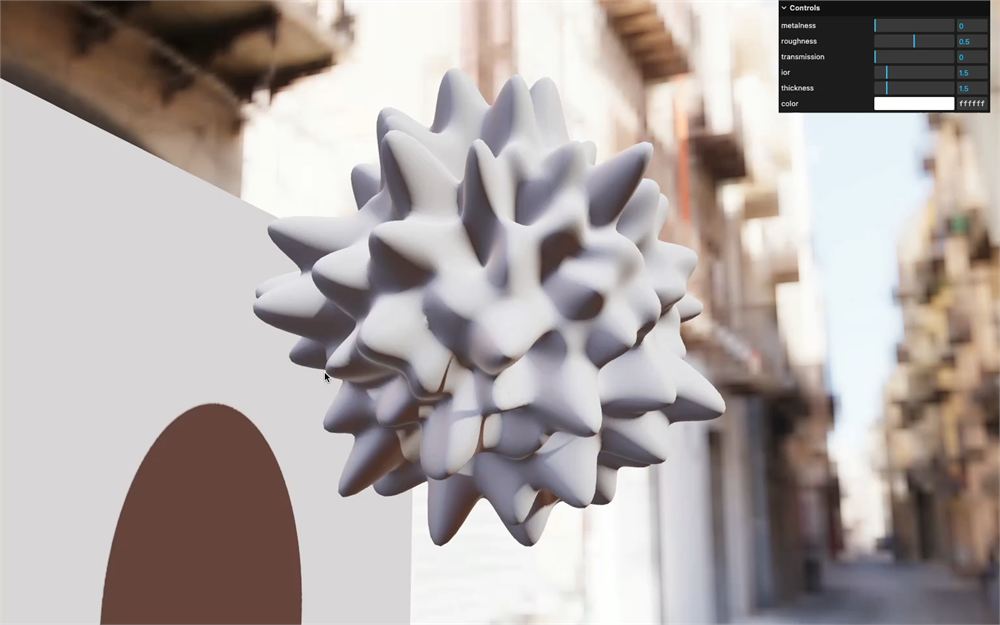
如果你还记得前几课的内容,为了处理 shadow,Three.js 会把从 light 视角看到的 scene 渲染到一张离屏 texture 中,并将所有 material 替换为 MeshDepthMaterial。利用这次渲染,Three.js 判断表面是否处于阴影中。
但摇摆效果并没有应用在默认的 MeshDepthMaterial 上。
我们需要提供自己的支持摇摆的 MeshDepthMaterial,可以借助 Custom Shader Material 增强 MeshDepthMaterial 来实现,然后将其赋值给 Mesh 的 customDepthMaterial 属性。
首先,让我们创建 depth material。
复制 material,将其命名为 depthMaterial,并将其 baseMaterial 设为 THREE.MeshDepthMaterial:
const depthMaterial = new CustomShaderMaterial({
    // CSM
    baseMaterial: THREE.MeshDepthMaterial,
    vertexShader: wobbleVertexShader,
    fragmentShader: wobbleFragmentShader,
    silent: true,

    // ...
})
移除所有与 MeshPhysicalMaterial 相关的属性,并添加一个名为 depthPacking 的属性,设为 THREE.RGBADepthPacking:
const depthMaterial = new CustomShaderMaterial({
    // CSM
    baseMaterial: THREE.MeshDepthMaterial,
    vertexShader: wobbleVertexShader,
    fragmentShader: wobbleFragmentShader,
    silent: true,

    // MeshDepthMaterial
    depthPacking: THREE.RGBADepthPacking
})
depthPacking 是 Three.js 使用的一种算法,它将深度编码到全部 4 个通道中,而不是使用灰度深度,从而提高精度。
由于我们不想更改 fragment shader,移除 fragmentShader 属性:
const depthMaterial = new CustomShaderMaterial({
    // CSM
    baseMaterial: THREE.MeshDepthMaterial,
    vertexShader: wobbleVertexShader,
    silent: true,

    // MeshDepthMaterial
    depthPacking: THREE.RGBADepthPacking
})
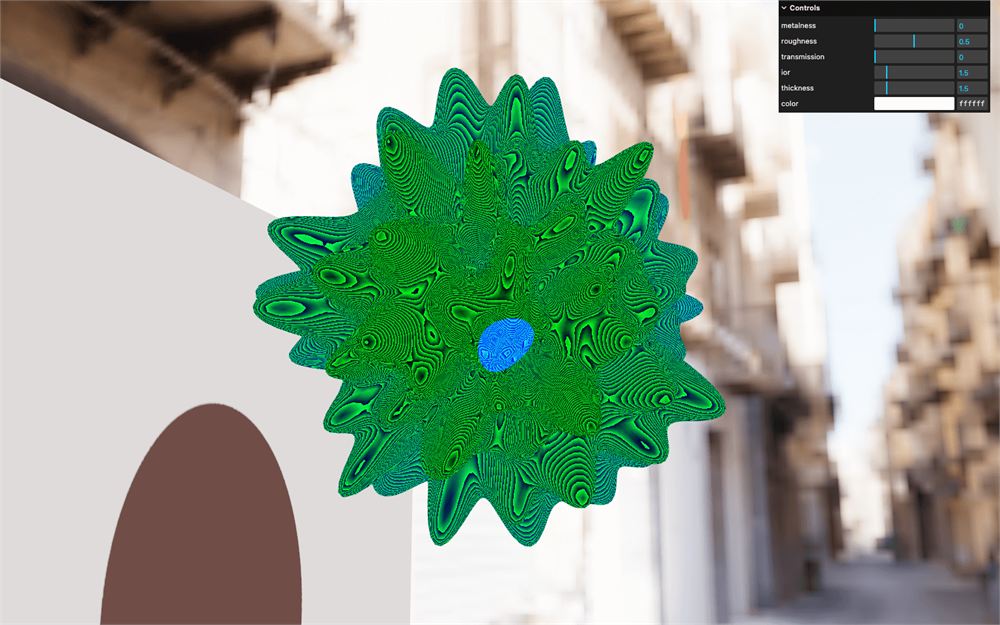
如果你好奇 depth material 长什么样,可以把它设置到 Mesh 上:
const wobble = new THREE.Mesh(geometry, depthMaterial)
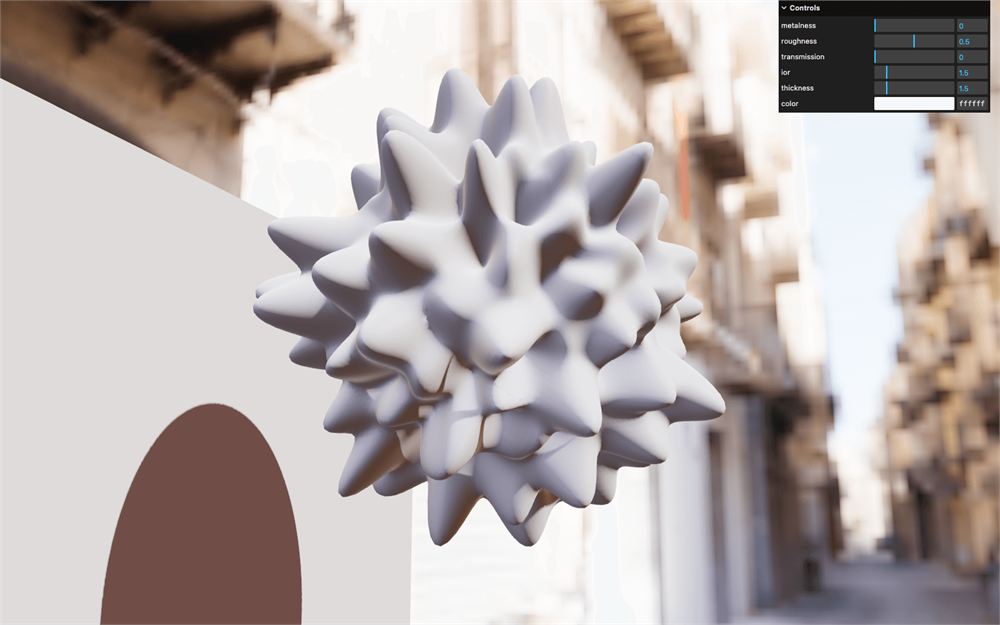
把 material 放回去:
const wobble = new THREE.Mesh(geometry, material)
将 depthMaterial 赋值给 wobble 的 customDepthMaterial 属性:
const wobble = new THREE.Mesh(geometry, material)
wobble.customDepthMaterial = depthMaterial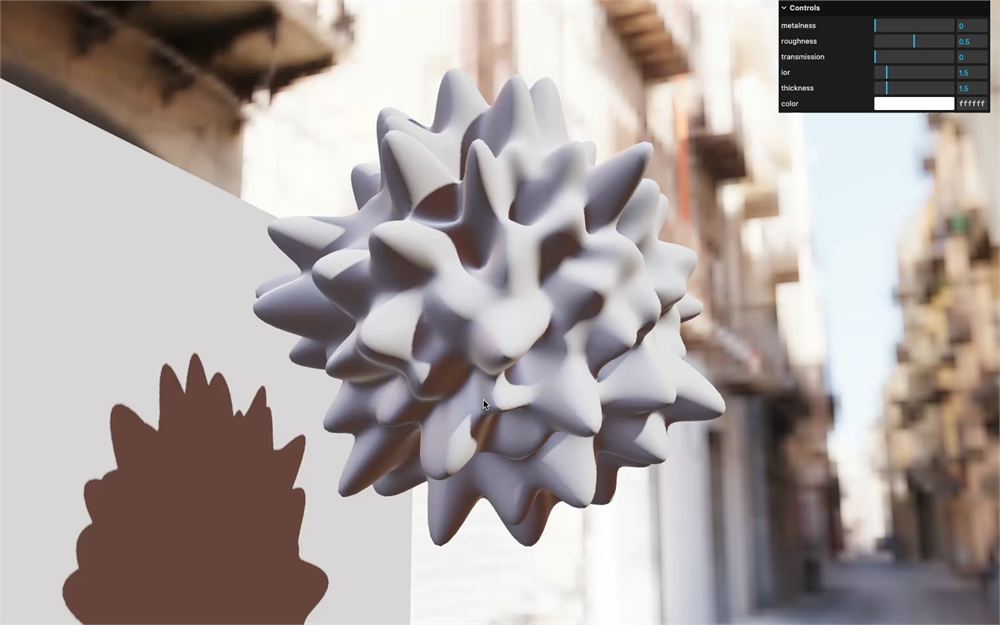
我们的 shadow 修好了。
让摇摆动起来并控制它
我们将使用 uniforms 来让摇摆动起来并进行控制。此外,我们将一次性创建 4 个 uniforms:
uTime用于让效果随时间变化uPositionFrequency用于控制空间频率uTimeFrequency用于控制时间频率uStrength用于控制摇摆的强度
由于这些 uniforms 会同时影响 material 和 depthMaterial,我们只创建一次并在两个 material 上共用它们。
在 material 之前,使用 Uniform 类创建一个包含以下属性的 uniforms 对象:
// Material
const uniforms = {
    uTime: new THREE.Uniform(0),
    uPositionFrequency: new THREE.Uniform(0.5),
    uTimeFrequency: new THREE.Uniform(0.4),
    uStrength: new THREE.Uniform(0.3),
}

const material = new CustomShaderMaterial({
    // ...
})

const depthMaterial = new CustomShaderMaterial({
    // ...
})
将 uniforms 传给两个 material 的 uniforms 属性:
const material = new CustomShaderMaterial({
    // ...
    uniforms: uniforms,
    // ...
})

const depthMaterial = new CustomShaderMaterial({
    // ...
    uniforms: uniforms,
    // ...
})
为 uPositionFrequency、uTimeFrequency 和 uStrength 添加调节项,min 值为 0,max 为 2,step 为 0.001:
// Tweaks
gui.add(uniforms.uPositionFrequency, 'value', 0, 2, 0.001).name('uPositionFrequency')
gui.add(uniforms.uTimeFrequency, 'value', 0, 2, 0.001).name('uTimeFrequency')
gui.add(uniforms.uStrength, 'value', 0, 2, 0.001).name('uStrength')
// ...
在 tick 函数中,使用 elapsedTime 更新 uTime.value:
const tick = () =>
{
    const elapsedTime = clock.getElapsedTime()

    // Materials
    uniforms.uTime.value = elapsedTime

    // ...
}
在 vertex.glsl 中,取回全部 4 个 uniforms:
uniform float uTime;
uniform float uPositionFrequency;
uniform float uTimeFrequency;
uniform float uStrength;
现在让我们把它们应用到 simplexNoise4d() 上。
将 position 乘以 uPositionFrequency:
float getWobble(vec3 position)
{
    return simplexNoise4d(vec4(
        position * uPositionFrequency, // XYZ
        0.0                            // W
    ));
}
将整个 simplexNoise4d() 乘以 uStrength:
float getWobble(vec3 position)
{
    return simplexNoise4d(vec4(
        position * uPositionFrequency, // XYZ
        0.0                            // W
    )) * uStrength;
}
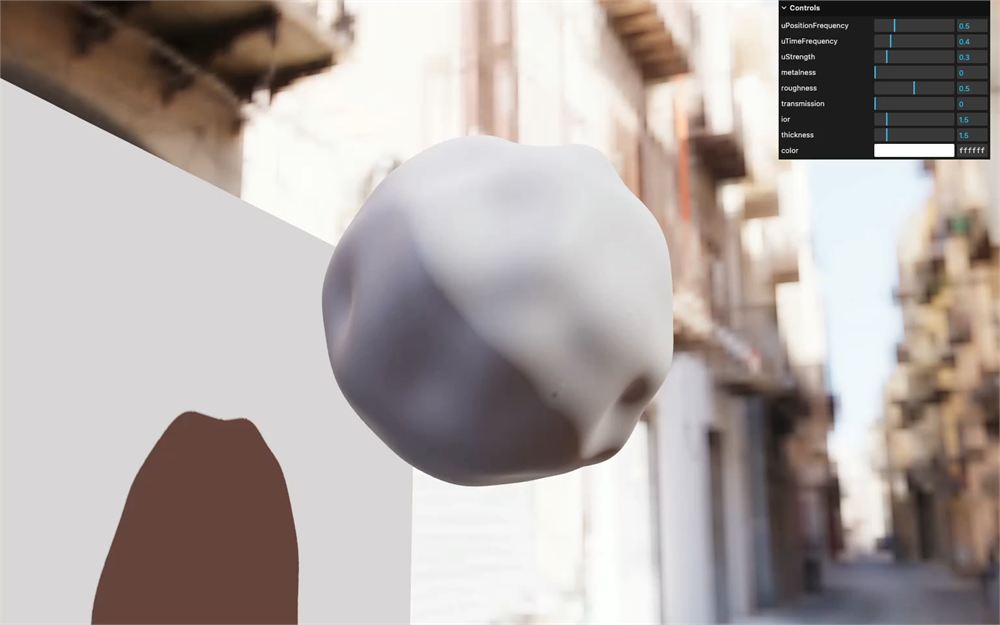
将 vec4 的第四个值(当前为 0.0)替换为 uTime 乘以 uTimeFrequency:
float getWobble(vec3 position)
{
    return simplexNoise4d(vec4(
        position * uPositionFrequency, // XYZ
        uTime * uTimeFrequency         // W
    )) * uStrength;
}
扭曲
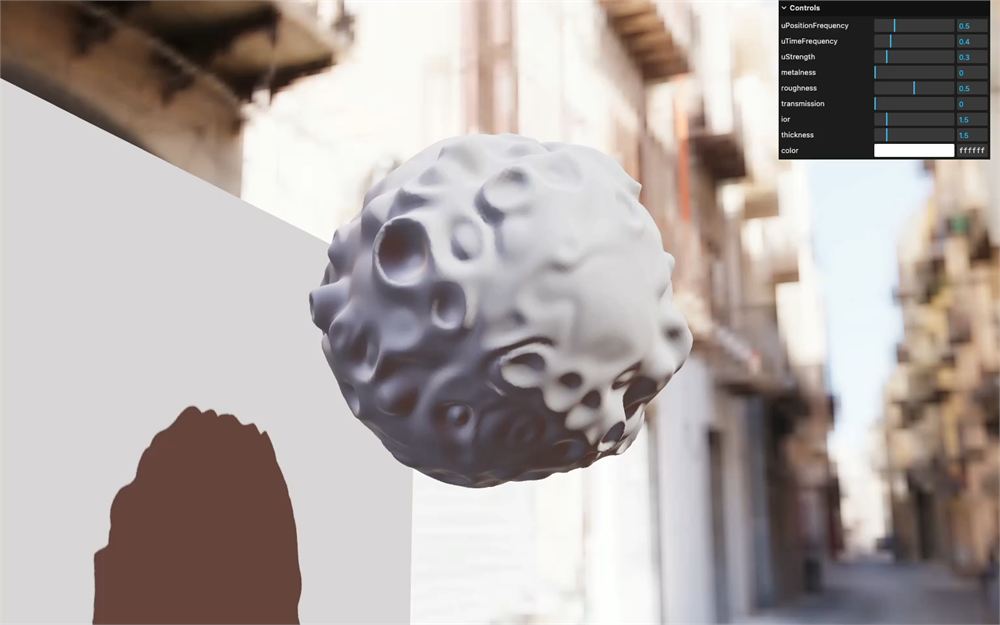
效果看起来不错,但太规律了。
我们可以将多个不同频率的 Simplex Noise 组合起来,但那样看起来更像是波浪。相反,我们将对发送给 Simplex Noise 的位置进行扭曲。
如果你是 Warhammer 40k 的粉丝,别害怕,这不是那种 warp(亚空间)。
思路是,我们将对发送给 Simplex Noise 的位置再应用一次 Simplex Noise。这是一次 Simplex Noise 的“盗梦空间”。
在 getWobble 函数中,基于 position 创建一个 vec3 warpedPosition,并将它(而不是 position)发送给 simplexNoise4d():
float getWobble(vec3 position)
{
    vec3 warpedPosition = position;

    return simplexNoise4d(vec4(
        warpedPosition * uPositionFrequency, // XYZ
        // ...
    )) * uStrength;
}
现在向 warpedPosition 添加另一个 simplexNoise4d,将 position 作为 vec4 的前 3 个值,uTime 作为第四个值:
float getWobble(vec3 position)
{
    vec3 warpedPosition = position;
    warpedPosition += simplexNoise4d(vec4(
        position,
        uTime
    ));

    // ...
}
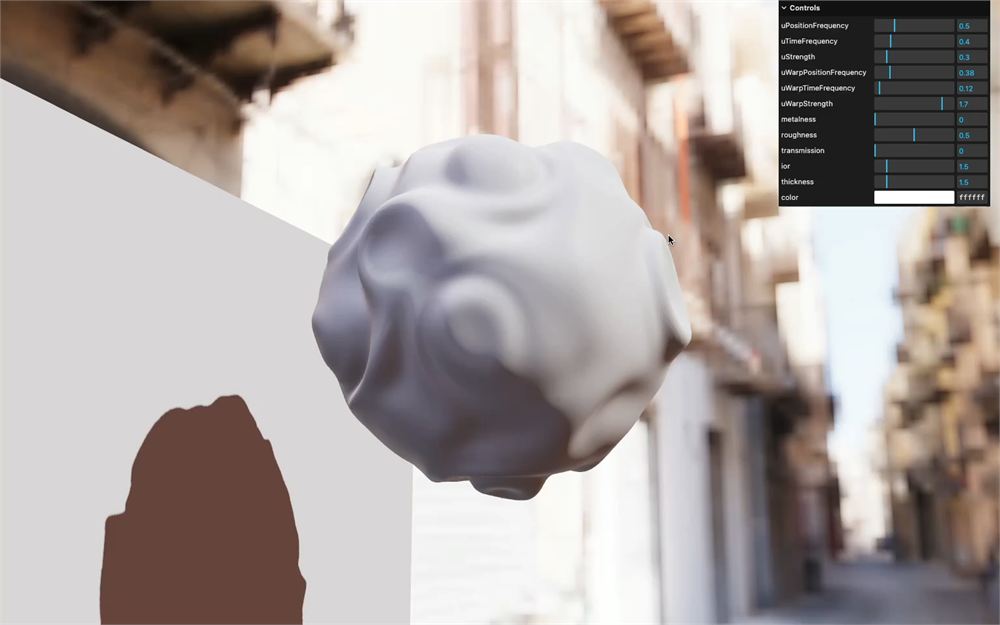
这就是我们想要的效果,但我们需要对它进行调节。由于参数与我们在最初的 simplexNoise4d() 中使用的类似,让我们再次添加 uniforms 和相关的调节项。
回到 script.js,向 uniforms 对象添加以下 uWarpPositionFrequency、uWarpTimeFrequency 和 uWarpStrength uniforms:
const uniforms = {
    // ...
    uWarpPositionFrequency: new THREE.Uniform(0.38),
    uWarpTimeFrequency: new THREE.Uniform(0.12),
    uWarpStrength: new THREE.Uniform(1.7),
}添加相应的调节项,min 值为 0,max 为 2,step 为 0.001:
// Tweaks
// ...
gui.add(uniforms.uWarpPositionFrequency, 'value', 0, 2, 0.001).name('uWarpPositionFrequency')
gui.add(uniforms.uWarpTimeFrequency, 'value', 0, 2, 0.001).name('uWarpTimeFrequency')
gui.add(uniforms.uWarpStrength, 'value', 0, 2, 0.001).name('uWarpStrength')
// ...
在 vertex.glsl 中,取回这三个 uniforms:
uniform float uWarpPositionFrequency;
uniform float uWarpTimeFrequency;
uniform float uWarpStrength;
将它们应用到与 warpedPosition 关联的 simplexNoise4d():
float getWobble(vec3 position)
{
    vec3 warpedPosition = position;
    warpedPosition += simplexNoise4d(
        vec4(
            position * uWarpPositionFrequency,
            uTime * uWarpTimeFrequency
        )
    ) * uWarpStrength;

    // ...
}
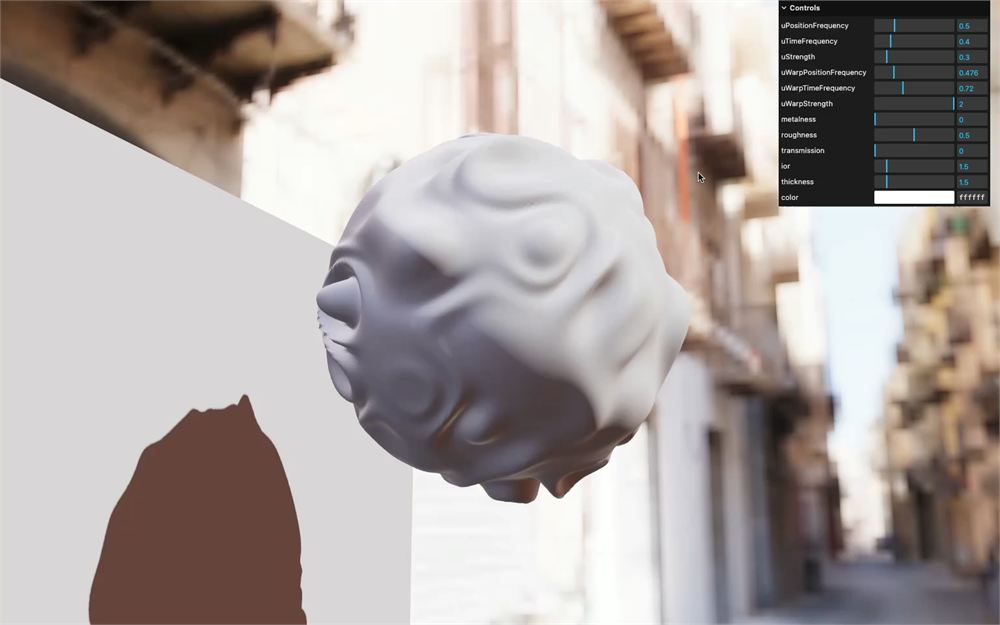
最棒的是,我们仍然可以调整 MeshPhysicalMaterial 的属性:
Fragment
摇摆效果已经完成了,但让我们再玩一玩,调整 fragment shader,让颜色根据摇摆发生变化。
颜色混合
由于我们要创建一个随摇摆变化的 fragment,首先需要将它从 vertex 传递到 fragment。
在 vertex.glsl 中,创建一个 float vWobble varying 并将 wobble 赋给它:
varying float vWobble;

// ...

void main()
{
    // ...

    // Varying
    vWobble = wobble;
}
在 fragment.glsl 中取回 float vWobble:
varying float vWobble;出于好奇,我们想看看 vWobble 里面有什么。在经典的 ShaderMaterial 中,我们会将它发送给 gl_FragColor 来查看可视化结果。借助 Custom Shader Material,我们可以用 csm_FragColor 变量来实现。
将 vWobble 组成的 vec3() 赋给 csm_FragColor 的 rgb:
void main()
{
    csm_FragColor.rgb = vec3(vWobble);
}
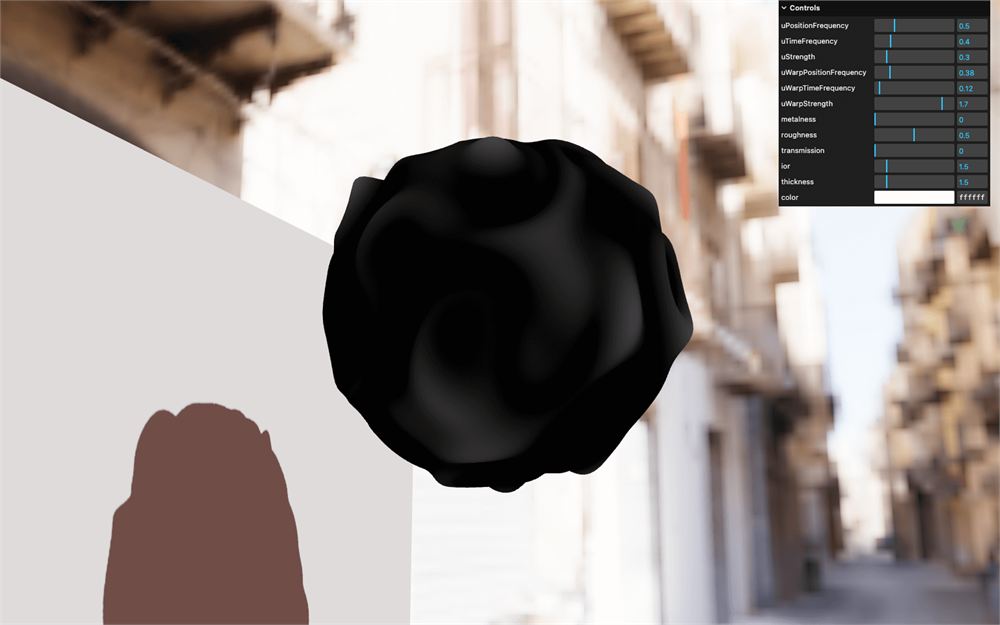
它起作用了,但对比度不是很高,就好像尽管 Simplex Noise 输出的数值范围是 -1 到 +1,vWobble 却远达不到 1 一样。
原因是我们对 simplexNoise4d() 应用了 uStrength,而目前 uStrength 相当低。
为了解决这个问题,在 vertex.glsl 中,当把 wobble 赋给 vWobble 时用 uStrength 去除 wobble,从而恢复 simplexNoise4d() 的原始范围:
void main()
{
    // ...

    // Varying
    vWobble = wobble / uStrength;
}
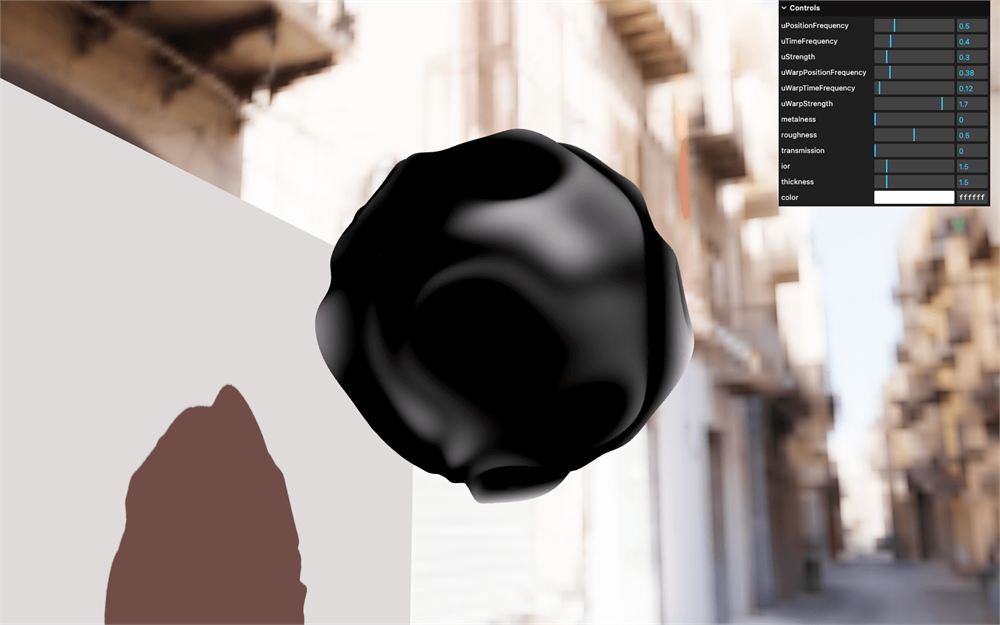
现在我们对 vWobble 满意了,在 fragment.glsl 中移除 csm_FragColor:
void main()
{
}
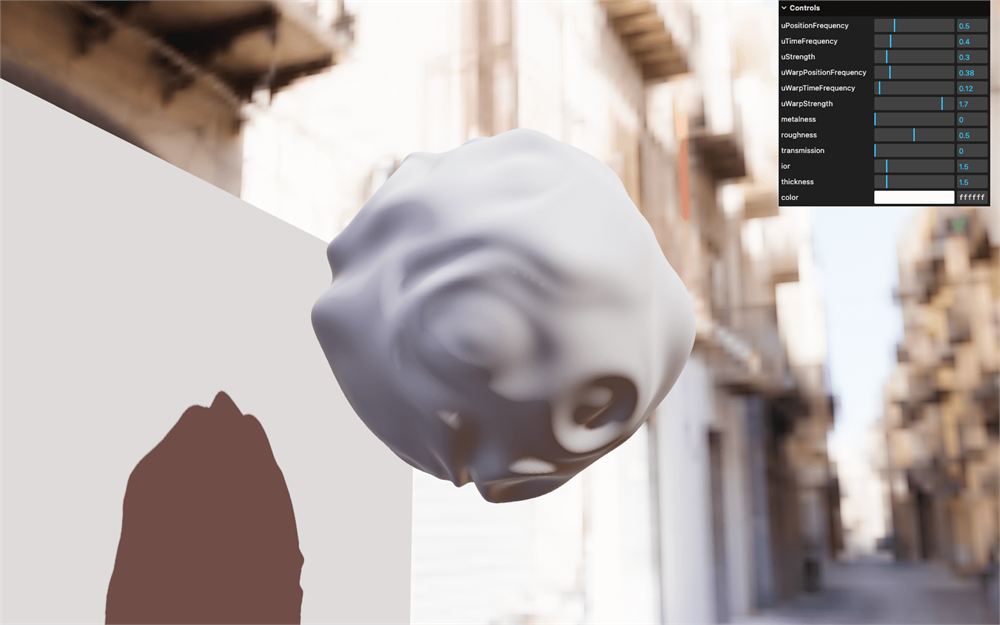
在这里你可以随心所欲地发挥。你可以绘制形状、调整 roughness、调整 metalness、让颜色变化等等。
在我们的例子中,我们将根据摇摆混合两种颜色。首先,我们需要将这两种颜色作为 uniforms 发送,并将它们设为可调节。
在 script.js 中,在 uniforms 之前,向 debugObject 添加 colorA 和 colorB:
debugObject.colorA = '#0000ff'
debugObject.colorB = '#ff0000'

const uniforms = {
    // ...
}
使用 Uniform 类和 Color 类将它们作为 uColorA 和 uColorB 添加到 uniforms 中:
const uniforms = {
    // ...
    uColorA: new THREE.Uniform(new THREE.Color(debugObject.colorA)),
    uColorB: new THREE.Uniform(new THREE.Color(debugObject.colorB))
}
这意味着我们也会把这些颜色 uniforms 发送给 depth material。虽然没用,但也不会产生任何错误,所以为了简化,我们就保持这样。
移除 'color' 调节项,并使用 addColor() 将其替换为 uColorA 和 uColorB 调节项:
// Tweaks
// ...
gui.addColor(debugObject, 'colorA').onChange(() => uniforms.uColorA.value.set(debugObject.colorA))
gui.addColor(debugObject, 'colorB').onChange(() => uniforms.uColorB.value.set(debugObject.colorB))
// ...
在 fragment.glsl 中,将 uColorA 和 uColorB uniforms 作为 vec3 取回:
uniform vec3 uColorA;
uniform vec3 uColorB;
在 main() 中,通过重新映射 vWobble 创建一个 float colorMix 变量,使其范围从 -1 到 +1 变为 0 到 1,并使用 smoothstep 平滑该值:
void main()
{
    float colorMix = smoothstep(- 1.0, 1.0, vWobble);
}
将 colorMix 作为 mix 的系数,在 uColorA 和 uColorB 之间混合。将其保存为 csm_DiffuseColor:
void main()
{
    float colorMix = smoothstep(- 1.0, 1.0, vWobble);
    csm_DiffuseColor.rgb = mix(uColorA, uColorB, colorMix);
}
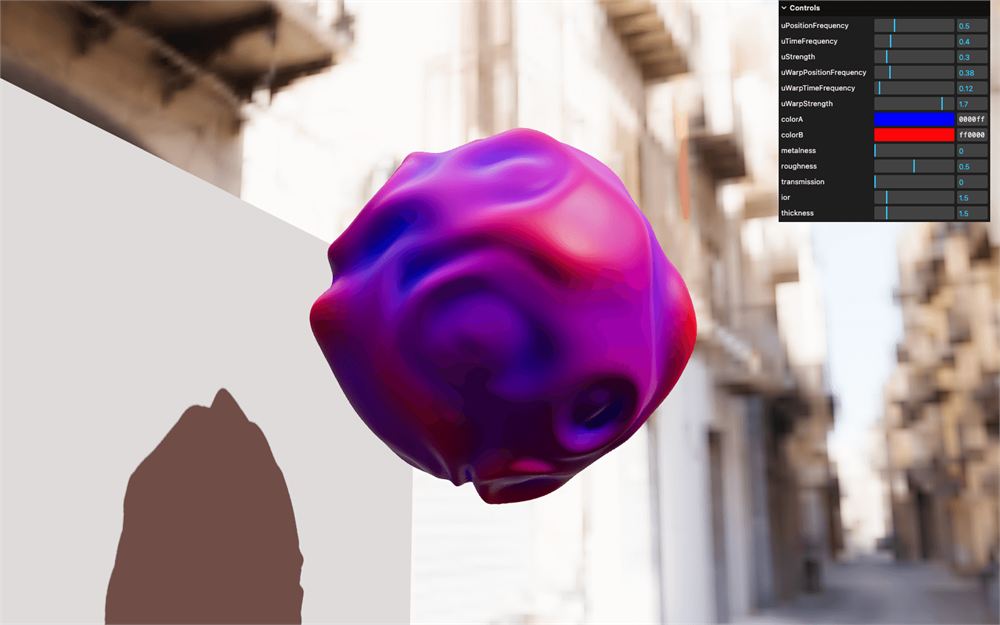
反光尖端
这很棒,但还可以更好。
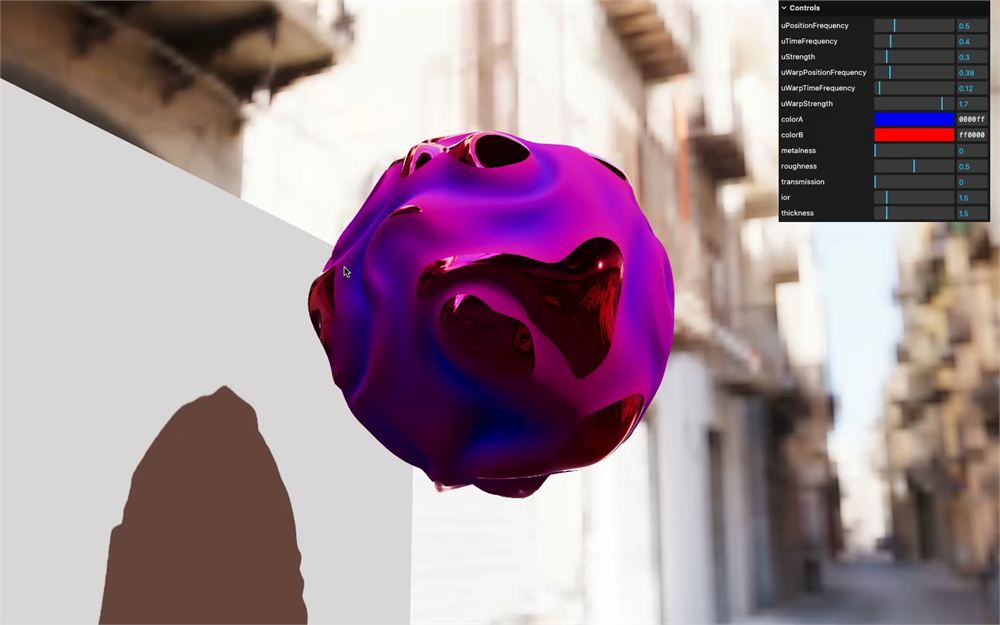
还记得我们一开始使用的 metalness/roughness 技巧吗?让我们用同样的技术让摇摆的尖端具有反光效果。
对 vWobble 使用阈值为 0.25 的 step,并将其赋给 csm_Metalness:
void main()
{
    // ...

    // Mirror step
    csm_Metalness = step(0.25, vWobble);
}
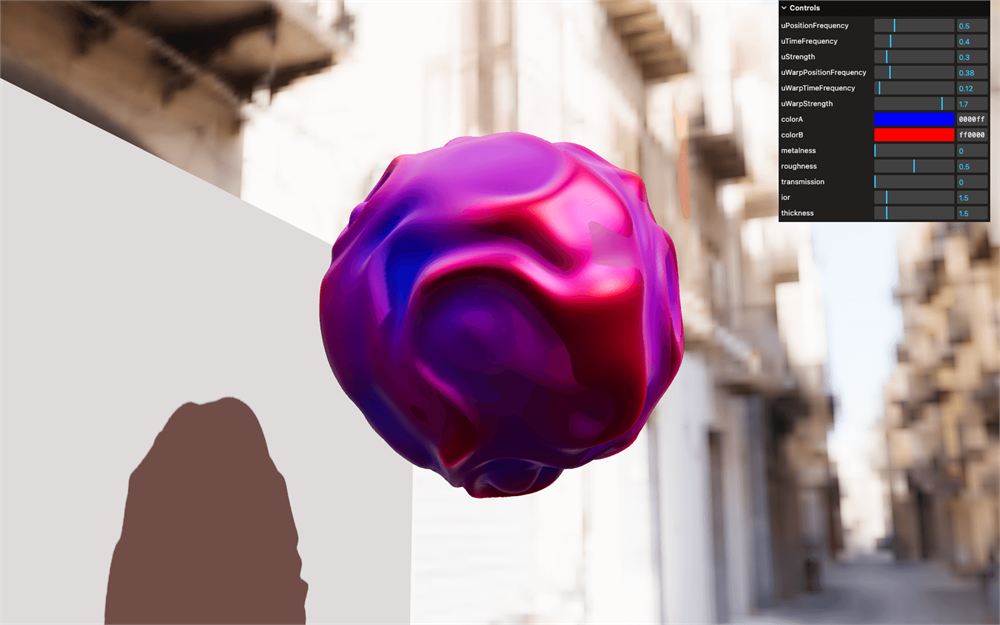
通过用 1.0 减去 csm_Metalness 来将 csm_Roughness 设为相反值:
void main()
{
    // ...

    // Mirror step
    csm_Metalness = step(0.25, vWobble);
    csm_Roughness = 1.0 - csm_Metalness;
}
光泽尖端
尽管这个效果不错,但让我们把它注释掉,尝试一些更微妙的效果。
void main()
{
    float colorMix = smoothstep(- 1.0, 1.0, vWobble);
    csm_DiffuseColor.rgb = mix(uColorA, uColorB, colorMix);

    // // Mirror step
    // csm_Metalness = step(0.25, vWobble);
    // csm_Roughness = 1.0 - csm_Metalness;
}
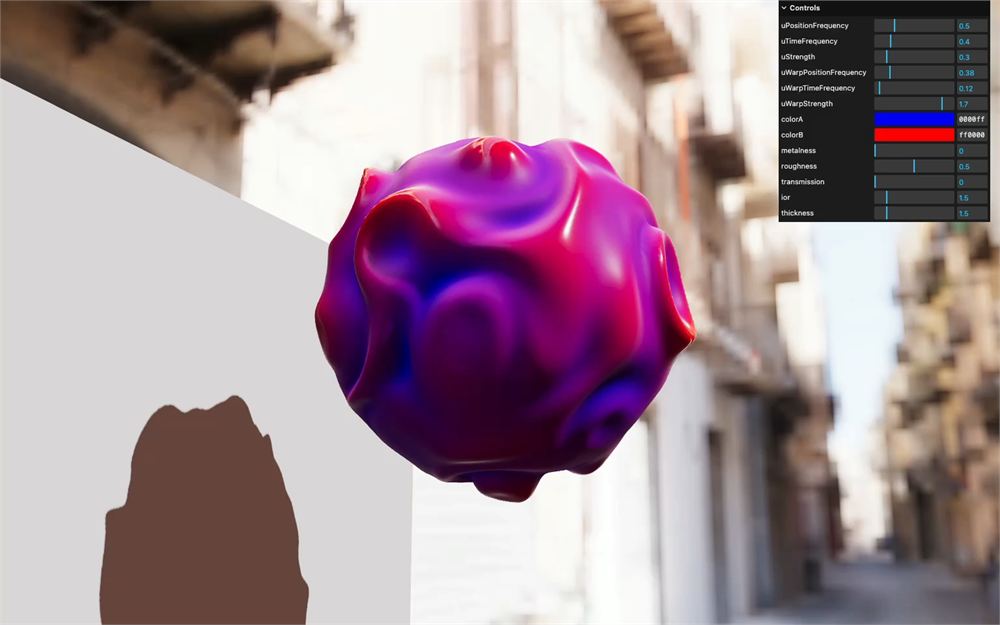
我们想通过降低 roughness 让摇摆的尖端更有光泽。
为此,用 1.0 减去 colorMix,并将其赋给 csm_Roughness:
void main()
{
    // ...

    // Shinny tip
    csm_Roughness = 1.0 - colorMix;
}
它开始变得奇怪了,所以我们就在这里停下。不过,欢迎你自由尝试。
模型
它对球体有效,但对任何形状都有效吗?
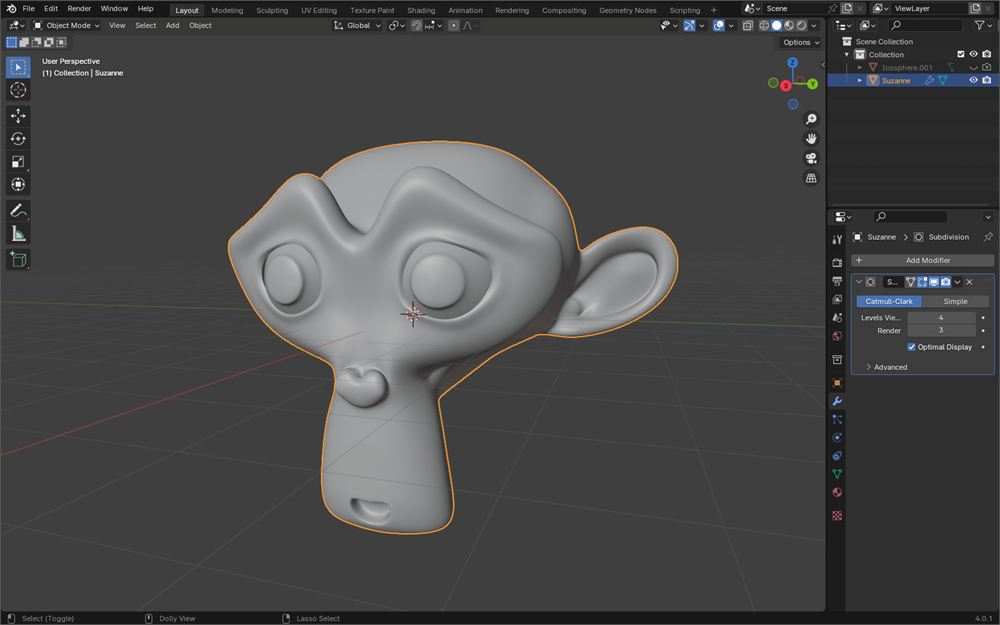
常用的 Suzanne 模型以 suzanne.glb 的形式提供在 static/ 文件夹中。
这个模型相当简单。它是对我们从 Blender 得到的默认 Suzanne 进行细分和平滑处理后的版本:
在 script.js 中,注释掉 Geometry 和 Mesh 部分:
// // Geometry
// let geometry = new THREE.IcosahedronGeometry(2.5, 50)
// geometry = mergeVertices(geometry)
// geometry.computeTangents()

// // Mesh
// const wobble = new THREE.Mesh(geometry, material)
// wobble.customDepthMaterial = depthMaterial
// wobble.receiveShadow = true
// wobble.castShadow = true
// scene.add(wobble)
使用 GLTFLoader 实例加载模型:
// Model
gltfLoader.load('./suzanne.glb', (gltf) =>
{

})
取回 gltf.scene 的第一个子对象,并将其赋给一个 wobble 变量:
gltfLoader.load('./suzanne.glb', (gltf) =>
{
    const wobble = gltf.scene.children[0]
})
像之前的 wobble Mesh 那样设置它,并将它 add() 到 scene:
gltfLoader.load('./suzanne.glb', (gltf) =>
{
    const wobble = gltf.scene.children[0]
    wobble.receiveShadow = true
    wobble.castShadow = true
    wobble.material = material
    wobble.customDepthMaterial = depthMaterial

    scene.add(wobble)
})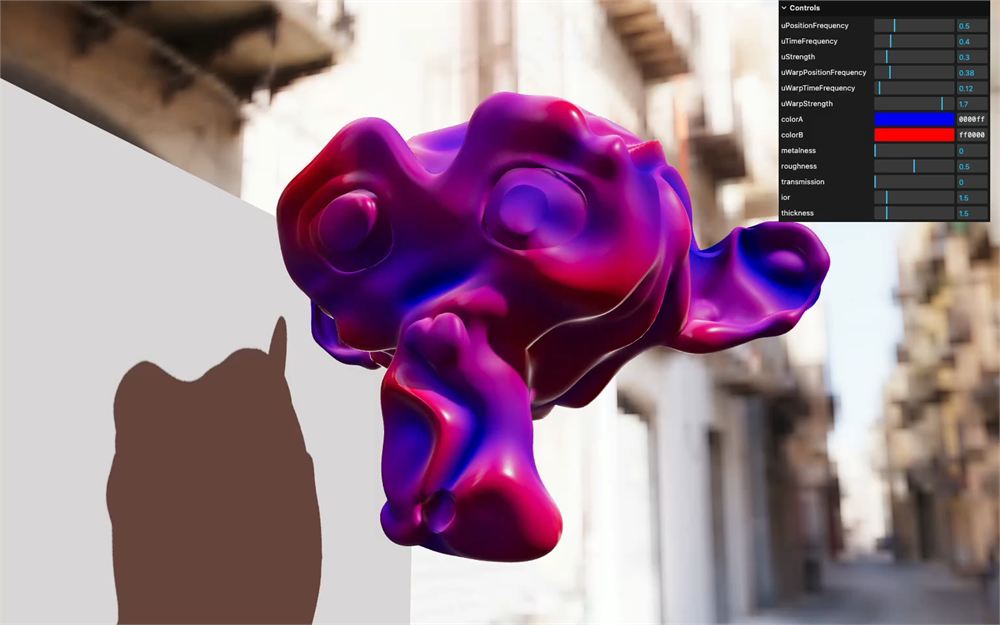
它活过来了!
更进一步
Custom Shader Material 让修改内置 material 变得轻而易举,使我们能够更多关注效果本身,而不是技术细节。
欢迎你进一步探索。以下是一些建议:
- 改进 fragment shader 并尝试新效果
- 使用你自己的模型
- 把这方面的知识应用到 Raging Sea 上,以便使用 MeshPhysicalMaterial
- 添加声音,让摇摆根据该声音的音量和频率做出反应